Creating a Sequence
Automatoir gives you two ways to build a sequence: describe what you want in plain language and let Automatoir generate the steps, or build each step manually with the structured editor. This guide covers both approaches.
What You'll Learn
- How to generate a full sequence from a natural language prompt
- How to use the structured step editor to build steps manually
- Best practices for delays between steps
- The difference between draft and active sequences
Natural Language Generator
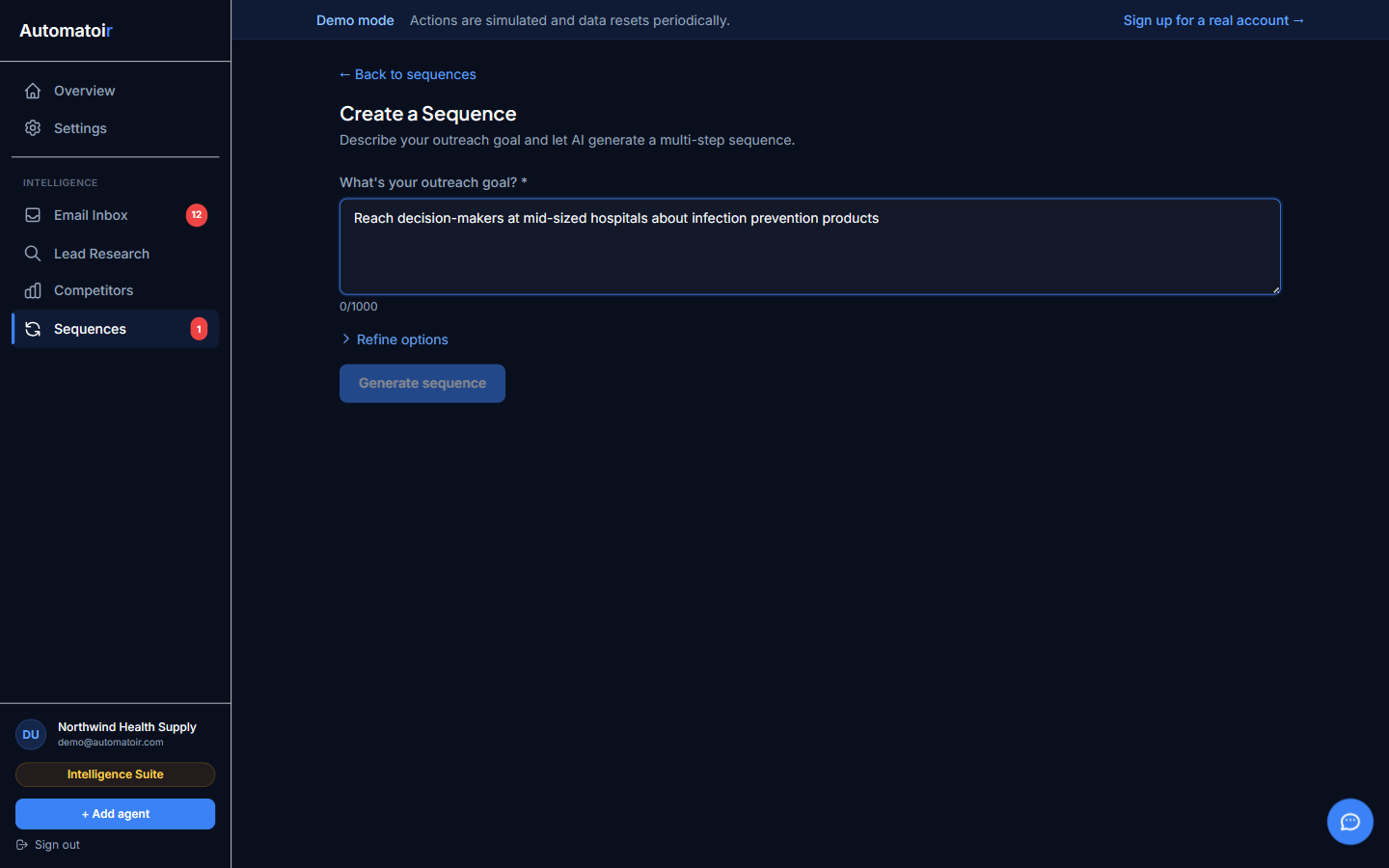
The fastest way to create a sequence is to describe your outreach goal in plain language. Open Sequences and click Create Sequence. In the prompt field, describe:
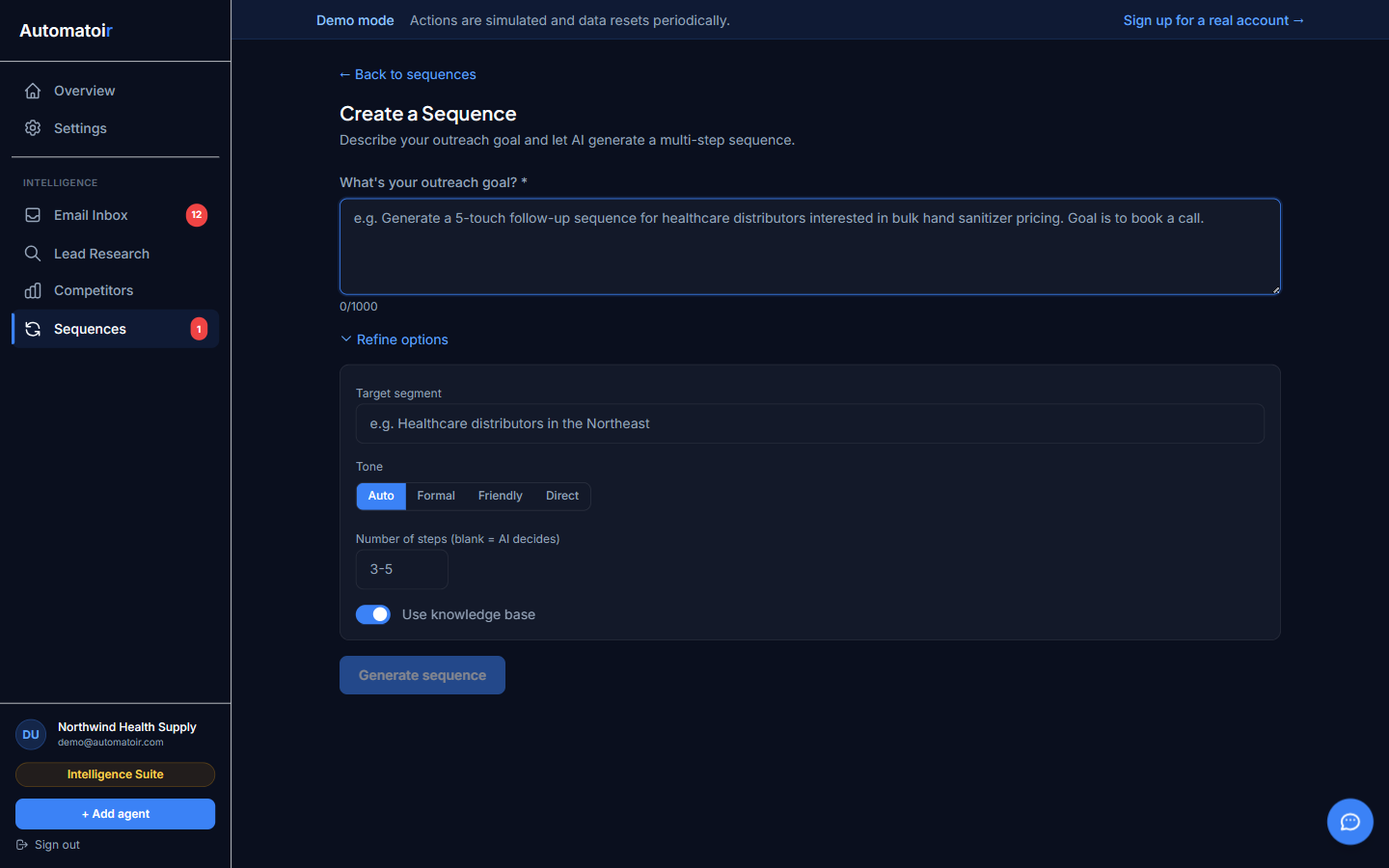
- Who you're reaching out to (role, industry, pain point)
- What you want to achieve (book a demo, share a resource, get a reply)
- How many steps you want
- The tone (professional, casual, direct)
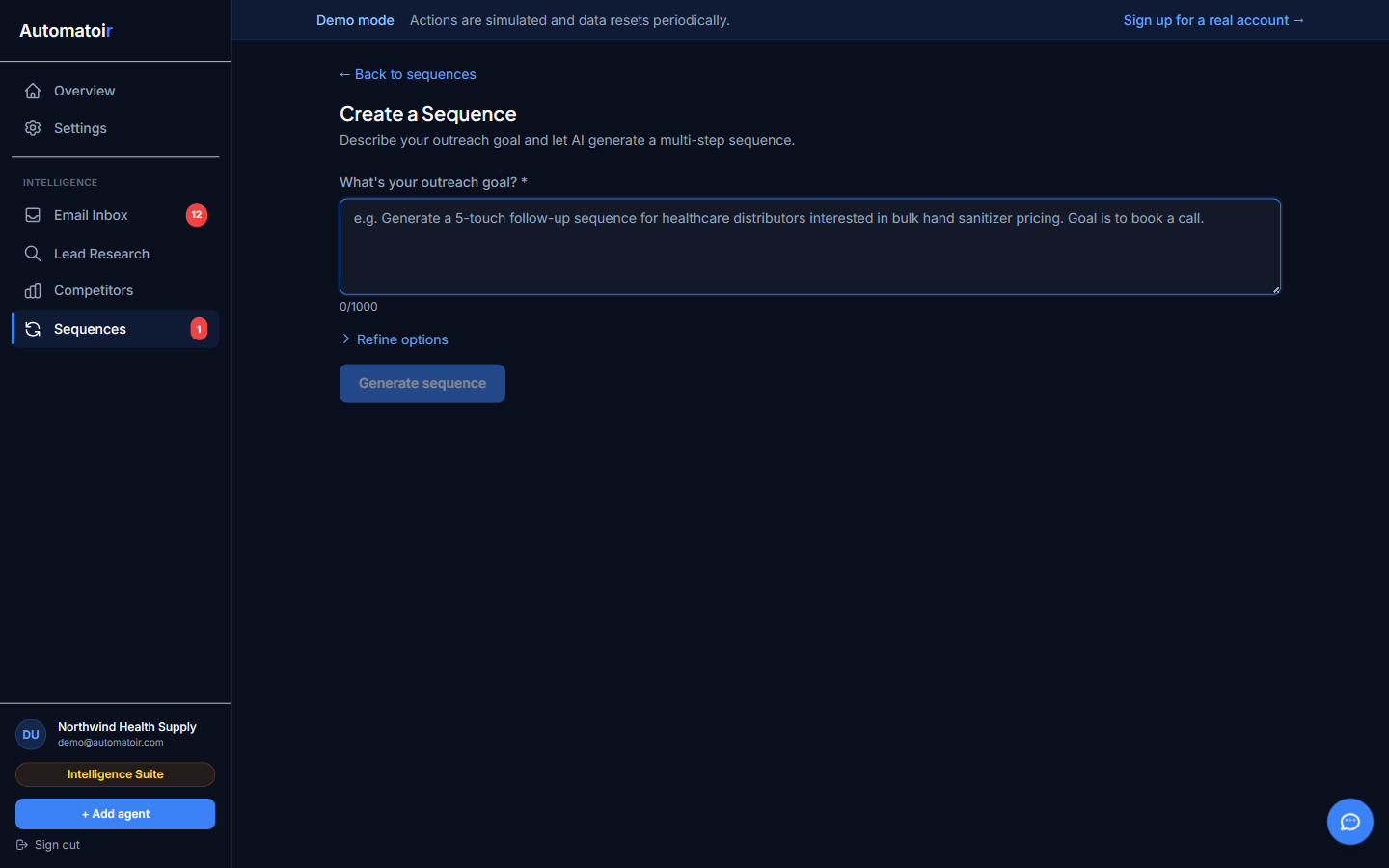
Automatoir uses your prompt along with your ICP and knowledge base to draft each step. Subject lines, body copy, and delays are all generated automatically. You can review and edit every step before saving.
Structured Step Editor
If you prefer full control, use the step editor to build each step from scratch. Click Add Step to append a new step to the sequence. For each step you configure:
- Subject line — Used for the first step. Follow-up steps inherit the thread subject by default.
- Body content — The email body. Supports personalization variables that are filled at send time.
- Delay — How many days to wait after the previous step before sending this one.
Delays and Best Practices
The delay on each step determines when it sends relative to the previous step. Here are some guidelines:
- Step 1 — Usually sends immediately (0-day delay) after enrollment.
- Step 2 — A 2-3 day delay gives the prospect time to read and respond before following up.
- Step 3+ — Increase delays progressively (5-7 days) to avoid being perceived as spam.
- Total sequence length — Most outreach sequences perform best with 3-5 steps spread over 2-3 weeks.
Draft vs Active
New sequences are created in draft mode by default. While in draft mode, no emails are sent even if prospects are enrolled. This gives you time to review the steps, adjust copy, and fine-tune delays.
When you're ready, toggle the sequence to active. Active sequences begin processing enrolled prospects according to their step schedule. You can pause an active sequence at any time — enrolled prospects will hold at their current step until you resume.
Related Guides
- Review Mode — How to approve or edit AI-generated drafts before they send.
- Enroll in Sequence — How to add prospects to a sequence from Lead Research.
- Analytics — Track performance metrics across your sequences.