Getting Started
Welcome to Automatoir. This guide walks you through the three steps to go from sign-up to a fully configured AI sales assistant. The entire setup takes about 15 minutes.
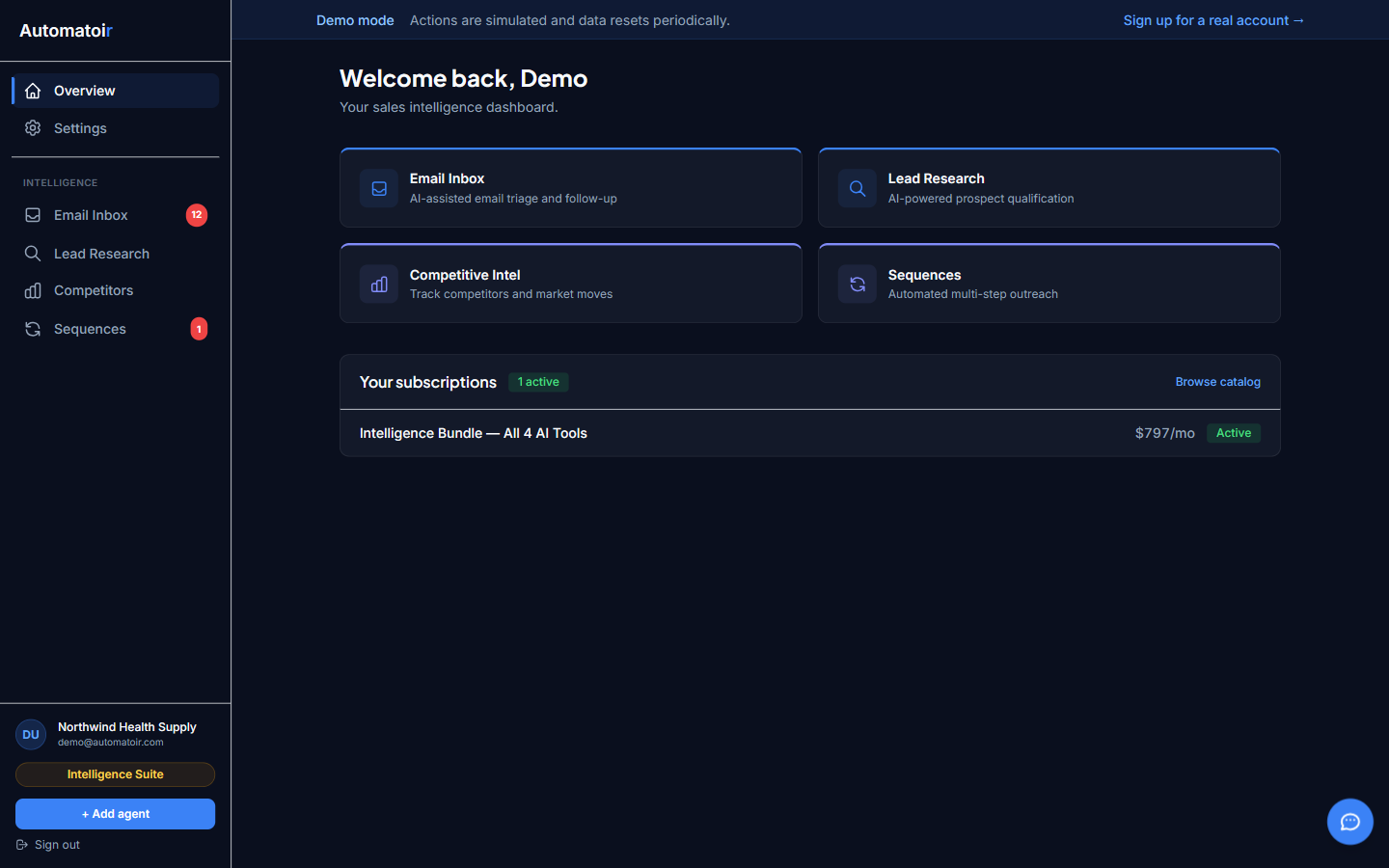
Quick Start in Three Steps
- Connect Gmail — Link your Google Workspace or Gmail account so Automatoir can read incoming email and draft replies on your behalf. No email is ever sent without your explicit approval.
- Define Your ICP — Tell Automatoir who your ideal customer is. Industry, geography, deal size, pain points, and disqualifiers give the AI the context it needs to classify and qualify prospects automatically.
- Upload Your Knowledge Base — Add product sheets, pricing docs, objection-handling guides, or scrape a URL. Automatoir uses this material to generate on-brand email drafts and sequence steps.
What Happens Next
Once all three steps are complete, Automatoir begins working immediately. Incoming emails are classified by intent, qualified against your ICP, and surfaced with AI-drafted replies. You stay in control — every draft waits for your approval before it's sent.
Detailed Guides
- Connect Gmail — Step-by-step walkthrough of the OAuth flow, scopes, and verification.
- Define Your ICP — How to describe your ideal customer so the AI can classify and qualify prospects.
- Knowledge Base — Upload documents and URLs that Automatoir uses to write on-brand content.
Related Guides
- Email Inbox — Learn how AI classification, drafts, and auto-response rules work once your account is set up.
- Lead Research — Add prospects and let AI qualify them against your ICP.
- Sequences — Build multi-step outreach sequences powered by your knowledge base.