Settings
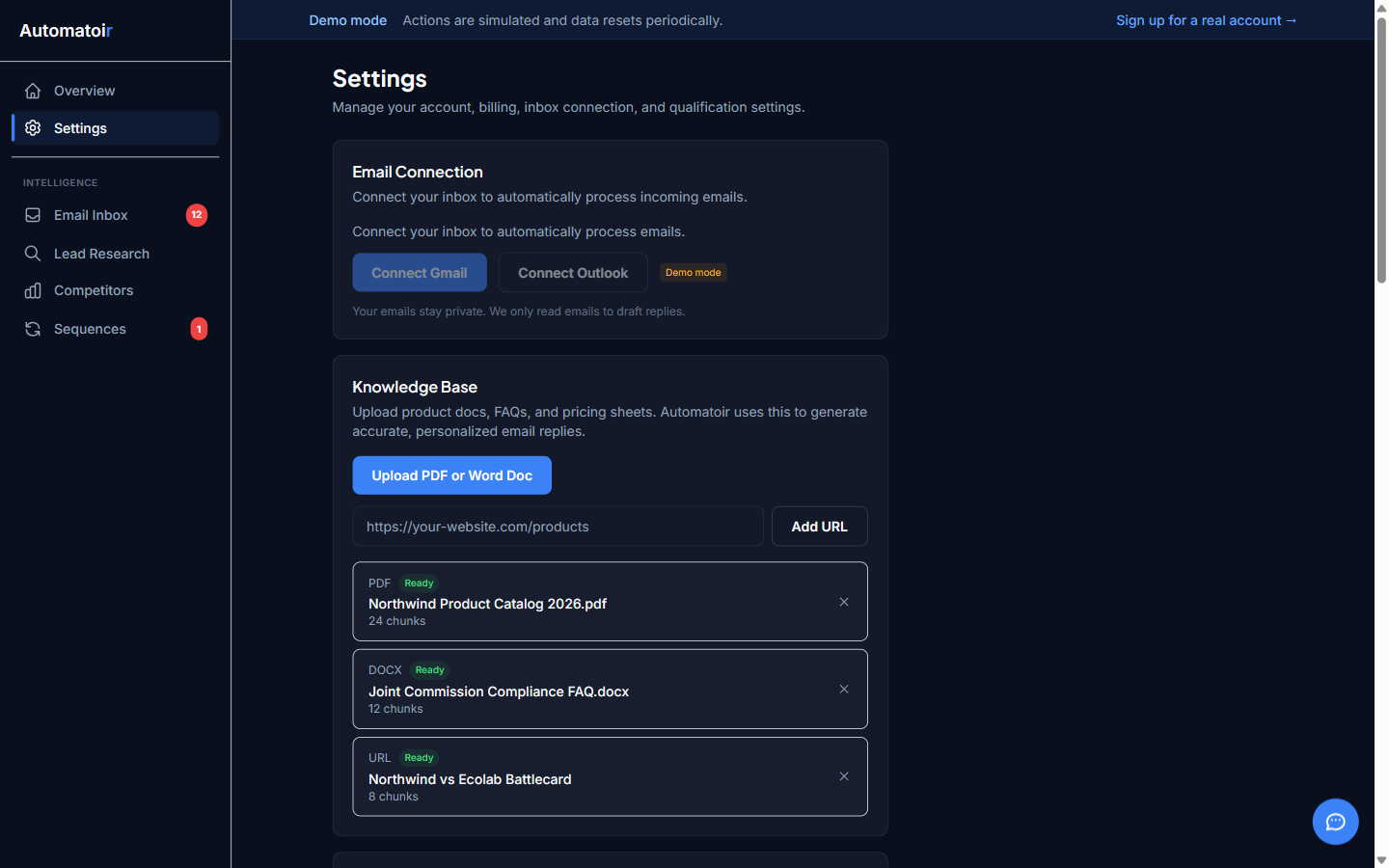
The Settings page is where you configure everything that powers Automatoir behind the scenes — from your ideal customer profile to your email connection, knowledge base, and billing. Each section controls a different part of the platform.
Ideal Customer Profile (ICP)
Your ICP tells Automatoir who your ideal buyer is. The AI uses this profile to classify incoming emails, qualify prospects, and generate relevant outreach content. Configure your target industries, company sizes, geographies, pain points, and disqualifiers.
Define Your ICP guide — Step-by-step walkthrough of configuring your ideal customer profile.
Email Connection
Connect your Gmail or Google Workspace account to give Automatoir access to your inbox. Automatoir uses this connection to read incoming email, send sequence emails, and deliver AI-drafted replies. You can disconnect and reconnect at any time without losing historical data.
Connect Gmail guide — OAuth flow, scopes, and troubleshooting.
Knowledge Base
Upload product sheets, pricing documents, objection-handling guides, or scrape a URL. Automatoir processes these materials and uses them as context when generating email drafts, sequence steps, and prospect qualification summaries. The more context you provide, the more on-brand the AI's output becomes.
Knowledge Base guide — How to upload documents and URLs, and how the processing pipeline works.
Auto-Response Rules
Auto-response rules let you define conditions under which Automatoir generates email drafts automatically. For example, you can create a rule that drafts a polite decline for all cold outreach emails, or a rule that flags pricing inquiries for immediate attention. Rules are evaluated against every incoming email.
Auto-Response Rules guide — How to create, edit, and prioritize rules.
CRM Connections
Automatoir integrates with HubSpot and Salesforce so you can push qualified prospects straight from Lead Research into your CRM. Connect a CRM with OAuth, map each Automatoir field to the right HubSpot property or Salesforce Lead field, and push contacts or leads with a single click.
- HubSpot — OAuth connect, Contact field discovery, custom field mapping, push prospects as HubSpot Contacts.
- Salesforce — OAuth connect, Lead field discovery, custom field mapping, push prospects as Salesforce Leads.
CRM Connections guide — Full walkthrough of connecting HubSpot and Salesforce, configuring custom field mapping, and pushing prospects.
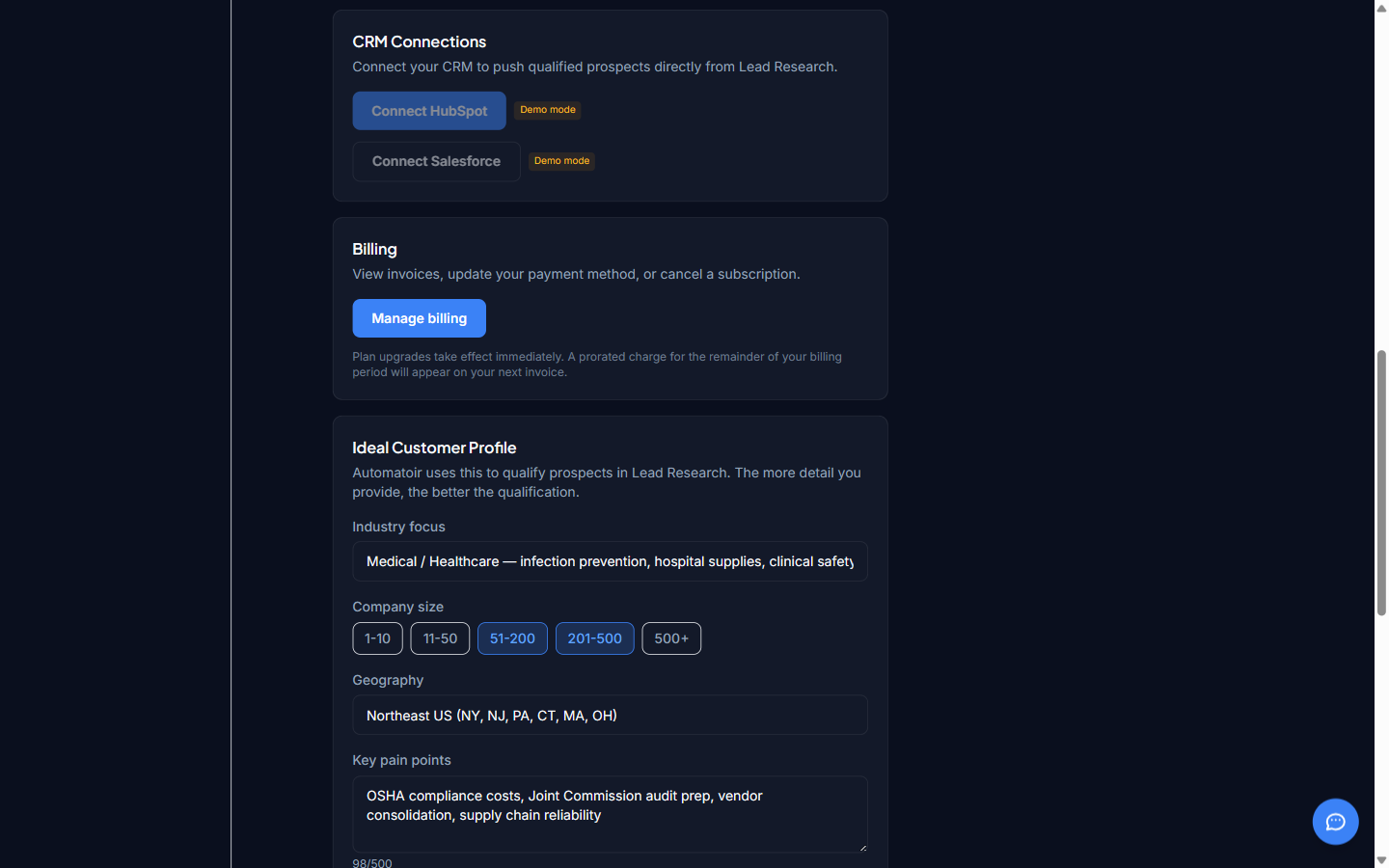
Billing
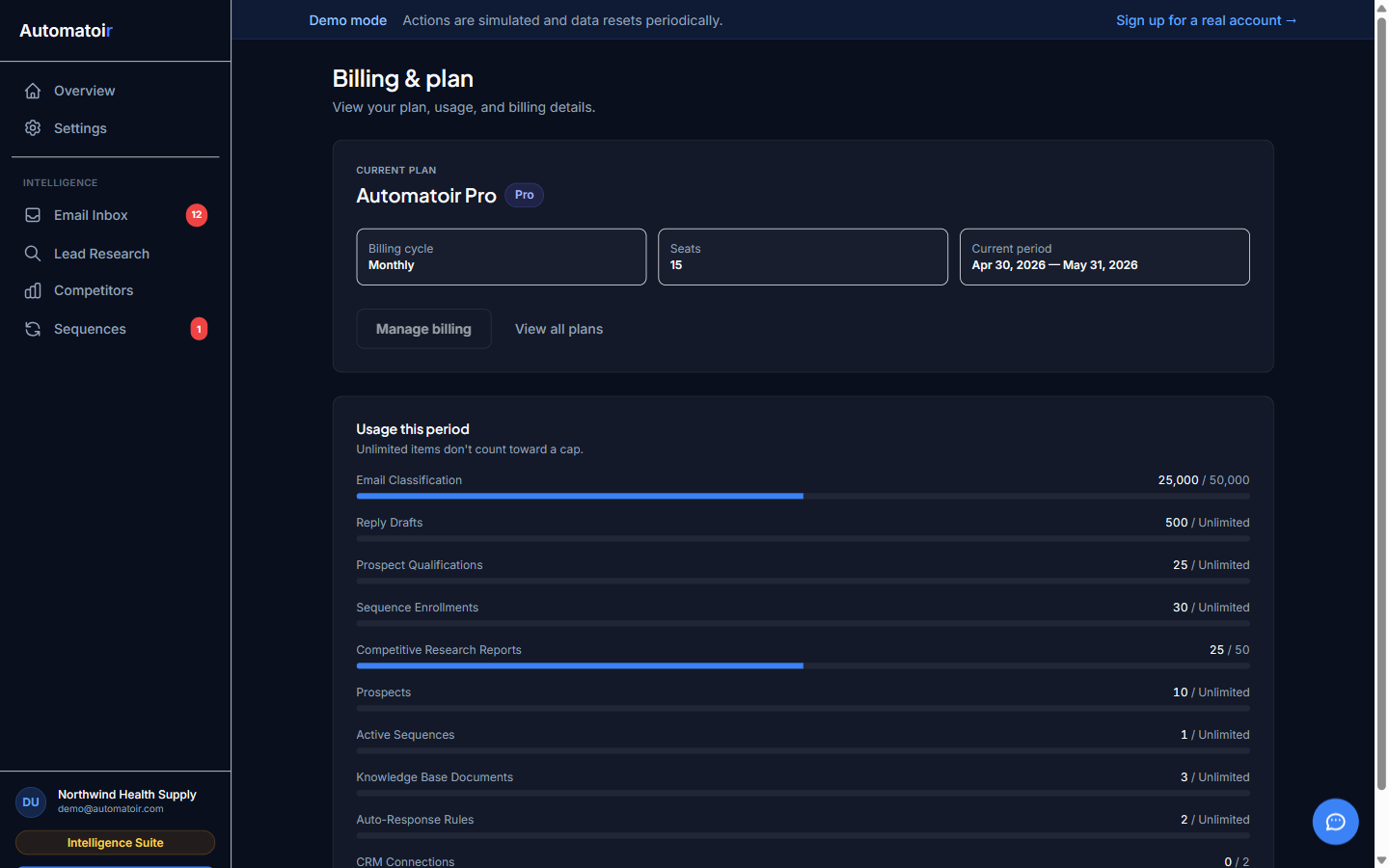
Click Manage billing in the Billing section to open your Stripe customer portal. From the portal you can update your payment method, download invoices, and cancel your subscription. Cancellations take effect at the end of your current billing period — you keep access until then. All billing is handled securely by Stripe; Automatoir never stores your card details.
If a payment fails, Automatoir shows a banner at the top of the dashboard prompting you to update your card. The banner clears automatically when the next payment succeeds.
Account
The Account section displays your profile information including your name, email address, and account ID. You can update your display name and manage your authentication settings from here. If you need to delete your account, contact support at hello@automatoir.com.
Related Guides
- Getting Started — Complete the initial three-step setup.
- Email Inbox — How classification, drafts, and compose work once your settings are configured.
- Sequences — Build outreach sequences that use your ICP and knowledge base.
- Competitive Intel — Monitor competitors using AI-powered analysis.