Enroll in Sequence
Once a prospect has been qualified, the next step is to enroll them in an outreach sequence. Enrollment connects a prospect to a multi-step email sequence so Automatoir can handle timing, follow-ups, and tracking automatically.
What You'll Learn
- How to enroll a qualified prospect in a sequence
- Where enrollment data lives and how to track progress
- How to unenroll a prospect manually
Enrolling a Prospect
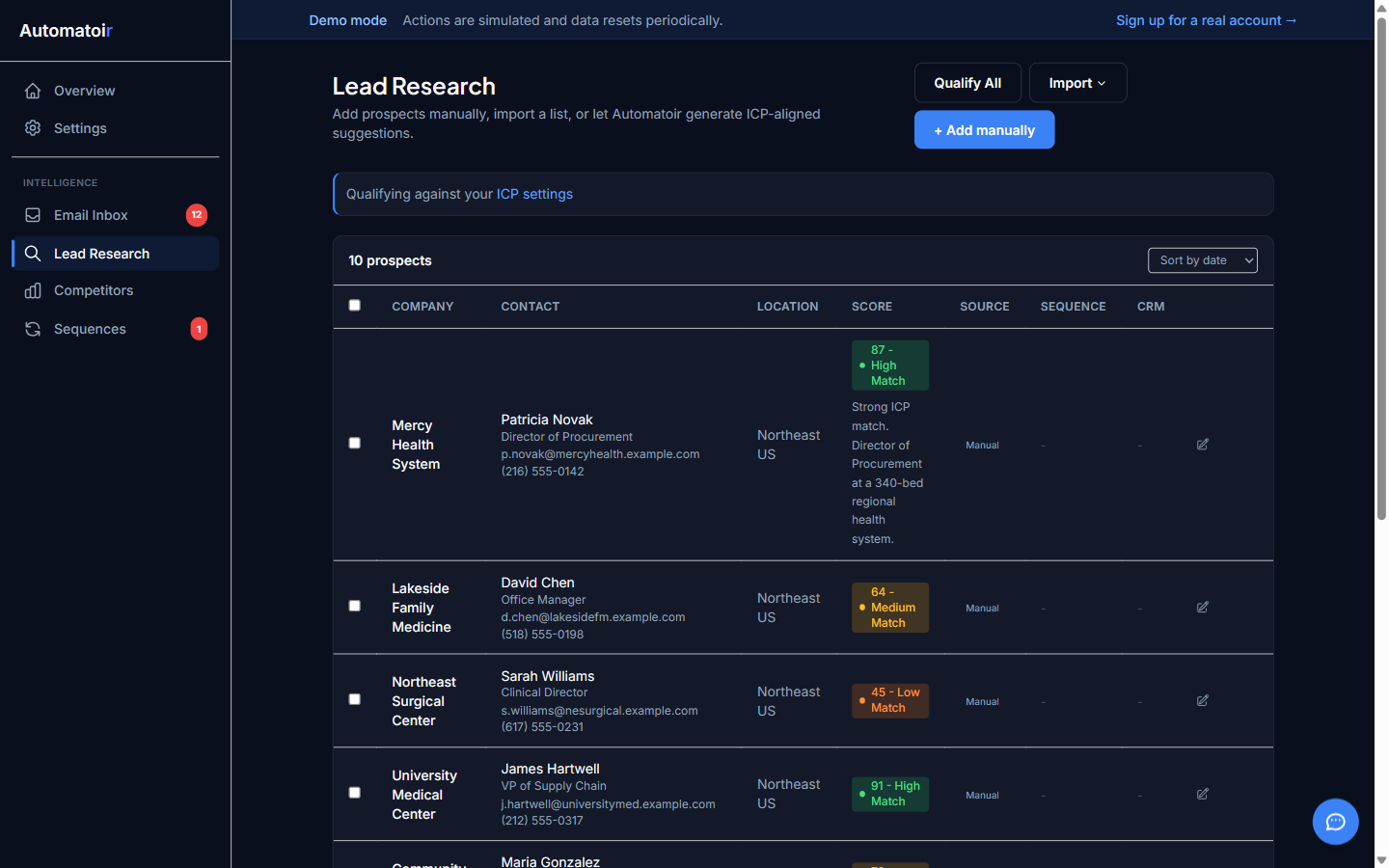
Open the prospect's detail view from the Lead Researchpage. If the prospect has been qualified, you'll see an Enroll in Sequence button. Click it to open the enrollment dialog.
The dialog lists all active sequences. Select the sequence you want and confirm. Automatoir immediately schedules the first step and begins the outreach cadence.
Where Enrollment Data Lives
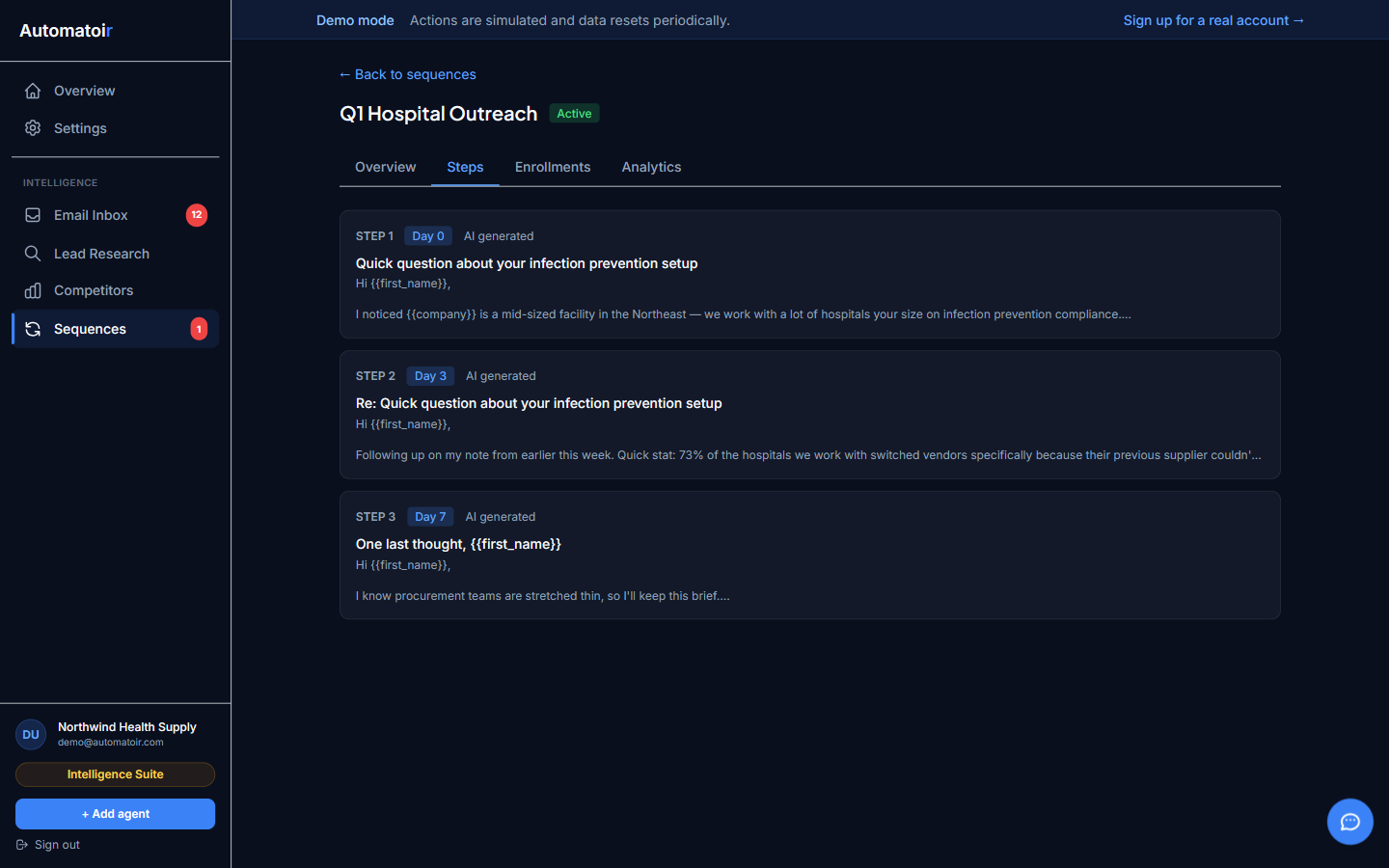
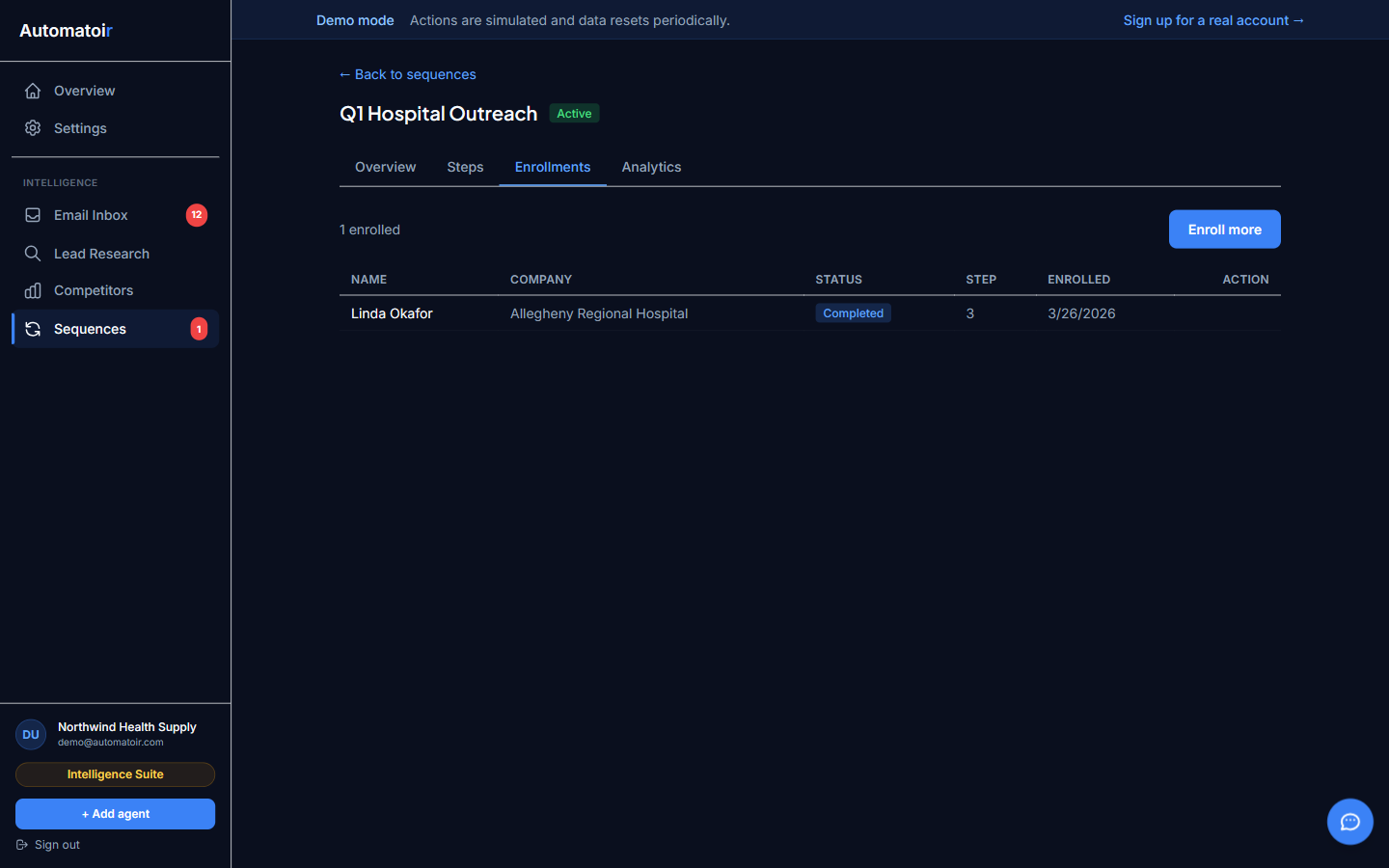
After enrollment, all progress and status information is tracked on the Sequences tab. Open Sequencesin the sidebar, open the relevant sequence, and you'll see every enrolled prospect along with their current step, send status, and reply activity.
The Lead Research page also shows a badge on enrolled prospects so you can tell at a glance which prospects are actively being contacted.
Unenrolling a Prospect
If you need to stop outreach for a prospect, you can unenroll them manually. Open the sequence detail view, find the prospect in the enrollment list, and click Unenroll. The prospect is removed from the sequence immediately and no further steps will be sent.
Unenrolling does not delete the prospect from your Lead Research list. You can re-enroll them in the same or a different sequence at any time.
Related Guides
- AI Qualification — Qualify prospects before enrolling them.
- Creating a Sequence — Build the multi-step sequences that prospects get enrolled into.
- Review Mode— Review and approve AI-generated emails before they're sent to enrolled prospects.