Auto-Unenroll
Auto-unenroll is Automatoir's built-in safeguard against sending follow-ups to prospects who have already responded. When a reply is detected, the prospect is automatically removed from the sequence and no further steps are sent.
What You'll Learn
- How Automatoir detects prospect replies
- What triggers an automatic unenrollment
- How to manually unenroll a prospect
- What happens to remaining steps after unenrollment
How Reply Detection Works
Automatoir monitors your connected inbox for incoming messages via the Nylas webhook. Each sequence step is sent as a reply in the same Gmail thread — step 1 stores the thread ID, and every follow-up is threaded into it. When a new email arrives, Automatoir matches the sender's email and the thread against active enrollments.
If a match is found, Automatoir marks the enrollment as replied and triggers the unenrollment process. This happens automatically — you do not need to take any action.
Paused Enrollments and Retry
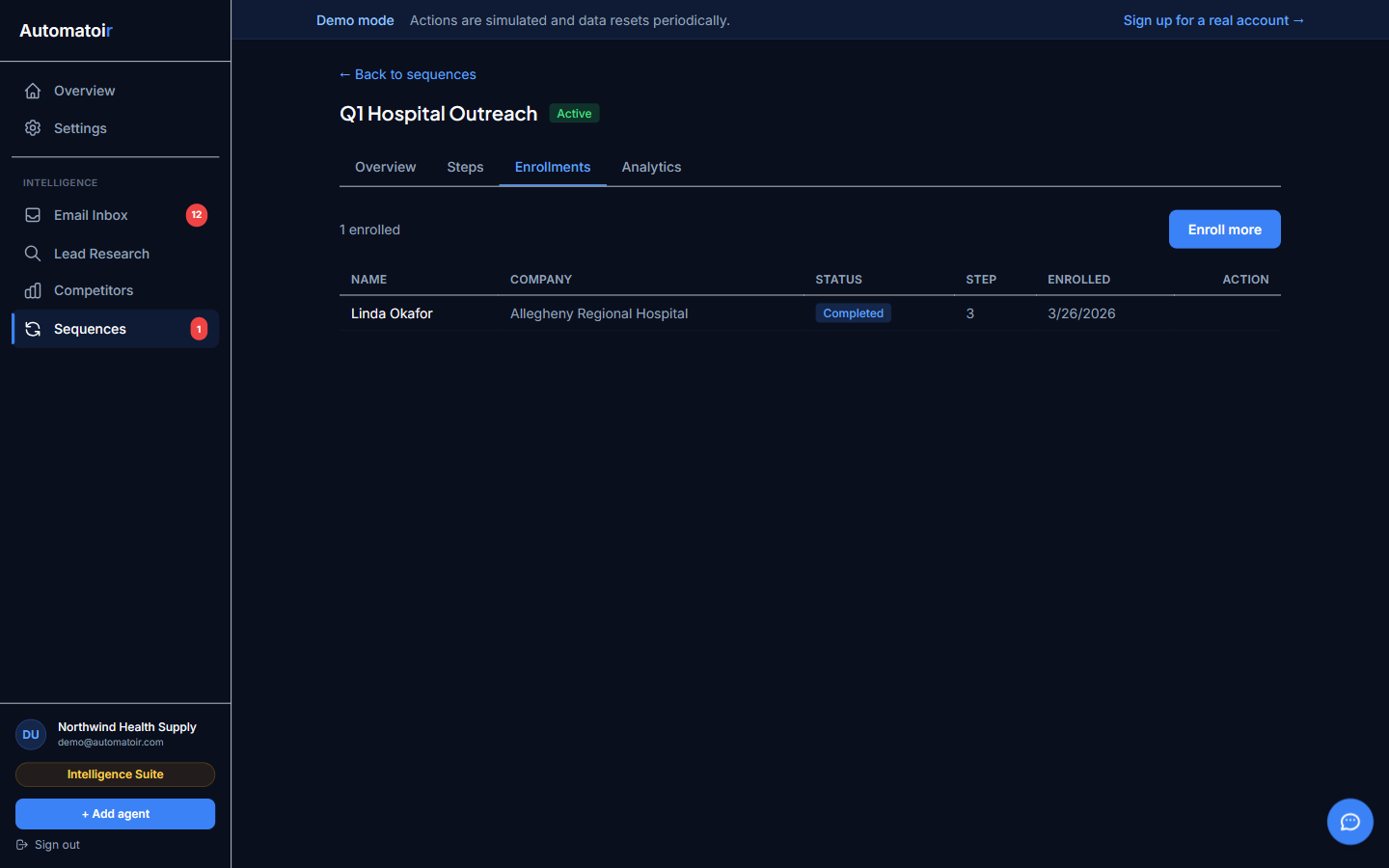
If a step fails to send — because of a temporary Nylas outage, a transient Gmail error, or a missing draft — the enrollment is marked as paused with an error message. A badge appears on the sequence detail view showing how many enrollments are paused, and a sidebar count surfaces it globally so you notice quickly.
Open the paused enrollment to see the specific error and click Retry to reset its next-send timer and attempt the step again. No data is lost — the enrollment resumes exactly where it left off.
What Triggers Unenrollment
The following events cause a prospect to be automatically unenrolled:
- Direct reply — The prospect replies to any email in the sequence thread. This is the most common trigger.
- Out-of-office reply — Auto-replies are detected and treated as replies. Automatoir pauses the sequence rather than continuing to send into an unmonitored inbox.
- Bounce — If an email bounces (invalid address, full mailbox), the enrollment is marked as bounced and no further steps are sent.
Manual Unenroll
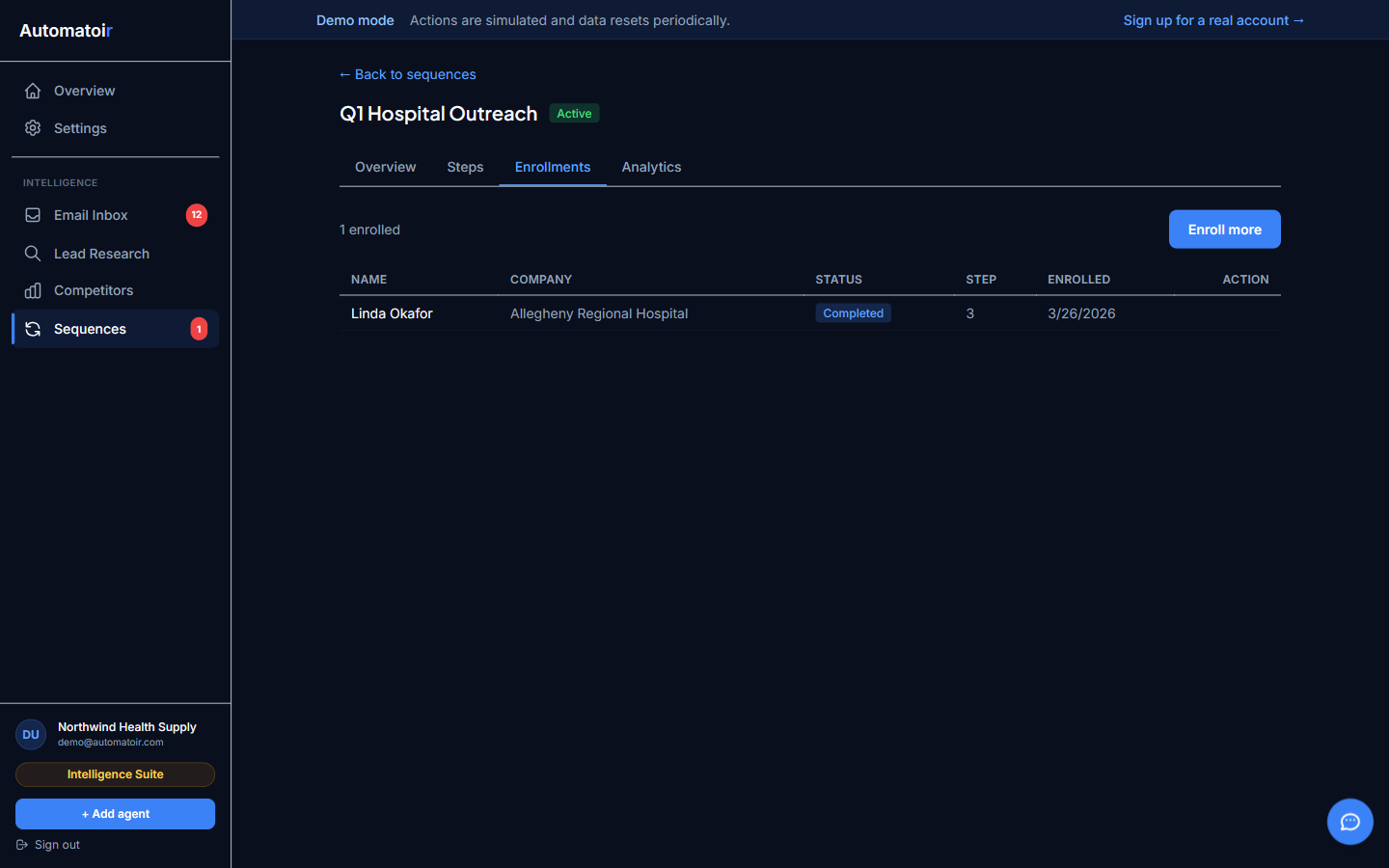
You can also unenroll a prospect manually at any time. Open the sequence detail view, find the prospect in the enrollment list, and click Unenroll. Manual unenrollment is useful when:
- You've had an offline conversation and further emails are unnecessary
- The prospect has asked to be removed through a different channel
- You realize the prospect is not a good fit and want to stop outreach
What Happens to Remaining Steps
When a prospect is unenrolled — whether automatically or manually — all remaining steps are cancelled immediately:
- Any scheduled but unsent steps are removed from the send queue
- Any pending review drafts for this prospect are dismissed
- The enrollment status changes to unenrolled (manual) or replied (automatic)
- Historical data for steps that were already sent is preserved for analytics
Unenrollment is final for that enrollment. If you want to re-engage the prospect later, you can enroll them in a different sequence or re-enroll them in the same sequence, which creates a new enrollment record.
Related Guides
- Analytics — See how unenrollment data factors into your sequence performance metrics.
- Review Mode — How pending review drafts are handled when a prospect is unenrolled.
- Enroll in Sequence — How to add a prospect to a sequence from Lead Research.