Adding Prospects
Before Automatoir can qualify and enroll prospects, you need to add them to your list. This guide covers how to create prospects manually, what each field means, and how to update records after they've been created.
What You'll Learn
- How to add a new prospect from the Lead Research page
- Which fields are required and which are optional
- How to generate prospects with AI from your Ideal Customer Profile
- How to import a list via CSV or extract a prospect from a URL
- How to edit an existing prospect's details
Adding a Prospect Manually
Open Lead Research from the sidebar and click the Add Prospectbutton in the top-right corner. A form slides open where you enter the prospect's details.
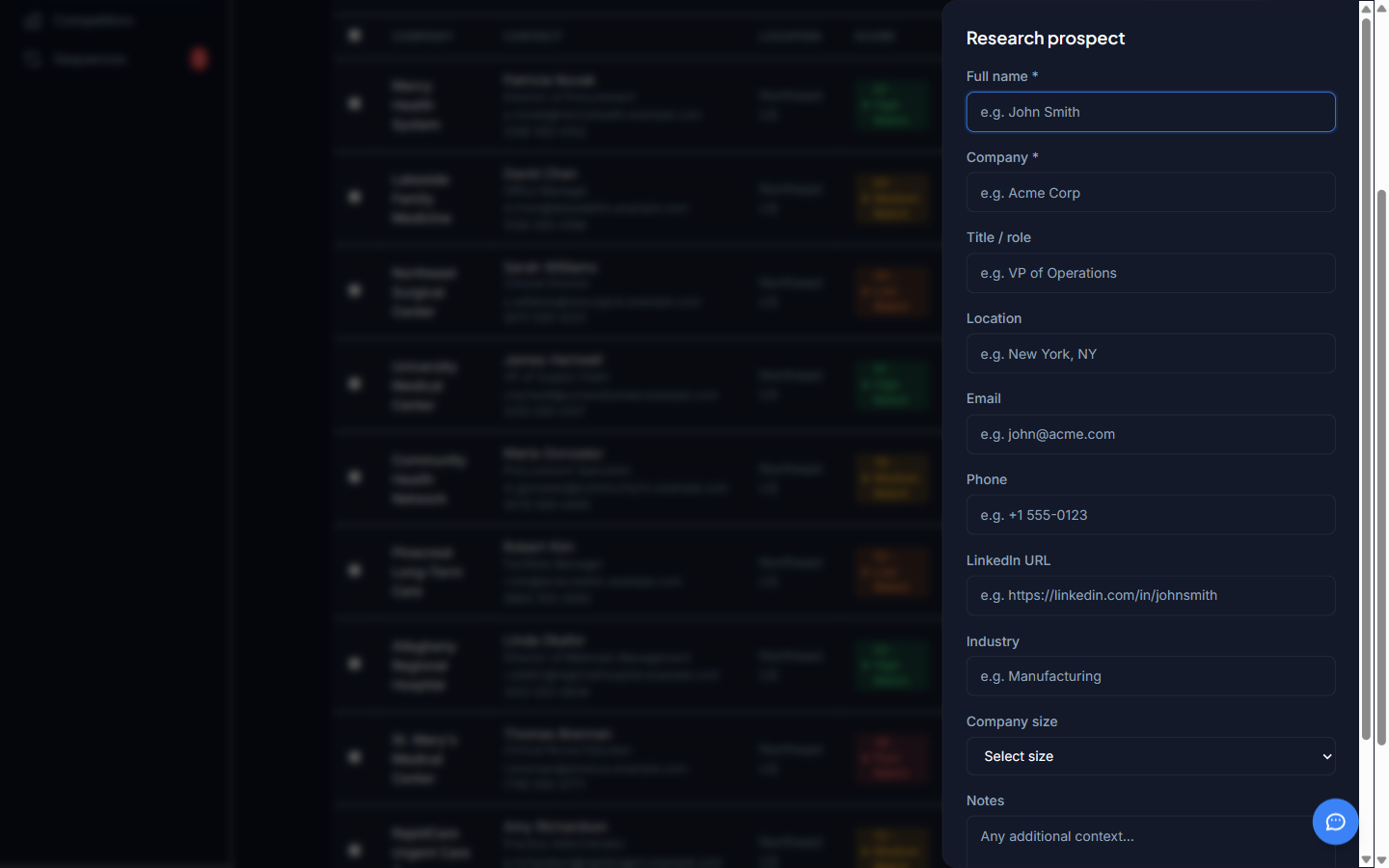
Required Fields
Every prospect needs these fields before it can be saved:
- First Name— The prospect's given name.
- Last Name— The prospect's family name.
- Email — A valid email address. This is used for sequence enrollment and deduplication.
Optional Fields
These fields are not required but improve AI qualification accuracy:
- Company— The prospect's organization. Helps Automatoir assess company-level fit against your ICP.
- Title — Job title or role. Automatoir uses this to evaluate decision-maker fit.
- LinkedIn URL— A link to the prospect's LinkedIn profile for additional context.
- Notes— Free-form text. Add context like "Met at SaaStr 2025" or "Referred by Jane" so the AI can personalize outreach.
Generating prospects with AI
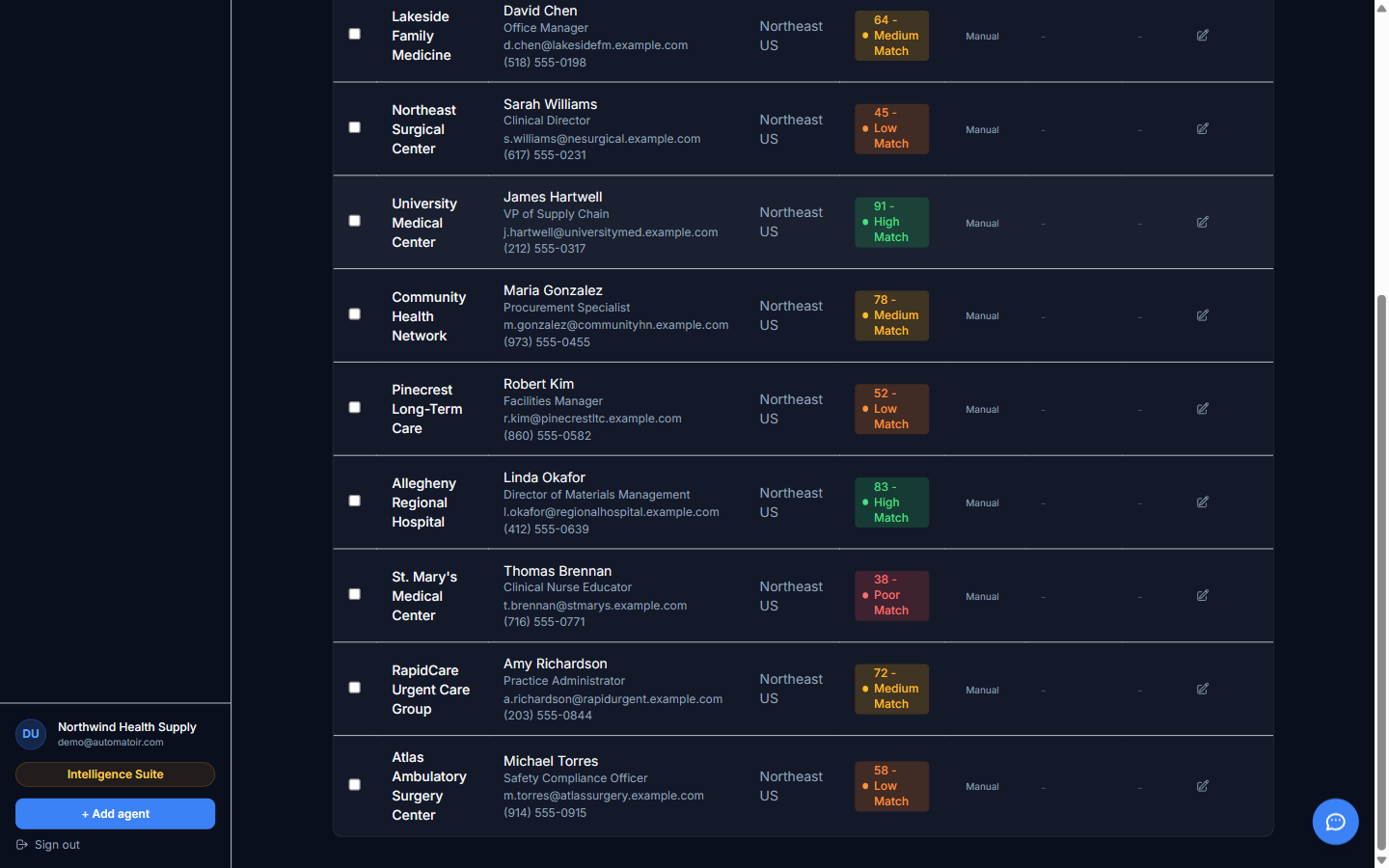
Describe your Ideal Customer Profile — industry, geography, company size, and target role — and Automatoir searches the public web for real companies that match. Open Lead Research, click Importin the top-right, and select AI Prospects.
Every result is verified before it lands on your list. We confirm the company exists, the website resolves, and the match reasoning is grounded in something specific the search surfaced — the company's size, product line, location, or recent news. You'll see the source URL behind every suggestion stored in the prospect's notes.
Public sources rarely include named contacts at smaller companies. Most generated prospects come back with the company, website, and qualification reasoning ready to use — but you'll need to add a contact name yourself with a quick LinkedIn or website lookup before enrolling them in a sequence. If your ICP is narrow — a small geography or a specific company-size band — expect fewer results. Automatoir surfaces only what it can verify rather than padding the list with unconfirmed matches.
Importing a list or scraping a URL
Two more paths sit in the same Import dropdown:
- Import CSV — Upload up to 500 rows per file. The import modal includes a Download template CSV link with the expected columns. Rows are deduped against your existing list by email.
- Scrape URL— Paste a single company page (about page, team page, or company website) and Automatoir extracts a prospect record from what's on the page.
Editing Prospects
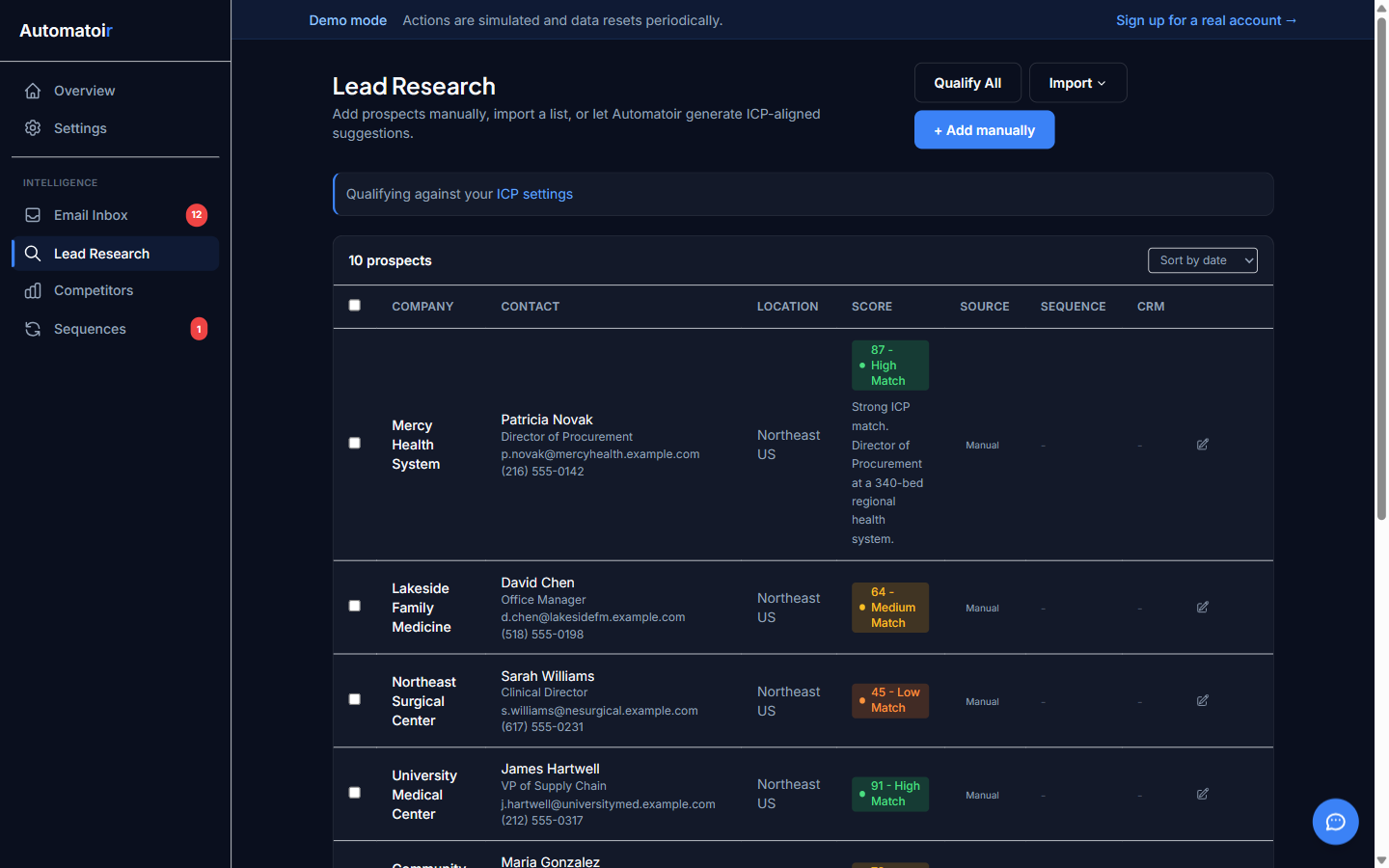
Click any prospect row to open the detail view. From there, click Edit to update any field. Changes are saved immediately and will be reflected the next time you run AI qualification.
Related Guides
- AI Qualification — Qualify your prospects against your ICP after adding them.
- Enroll in Sequence — Move qualified prospects into automated outreach.
- Define Your ICP — Configure the Ideal Customer Profile that powers AI qualification.