Compose
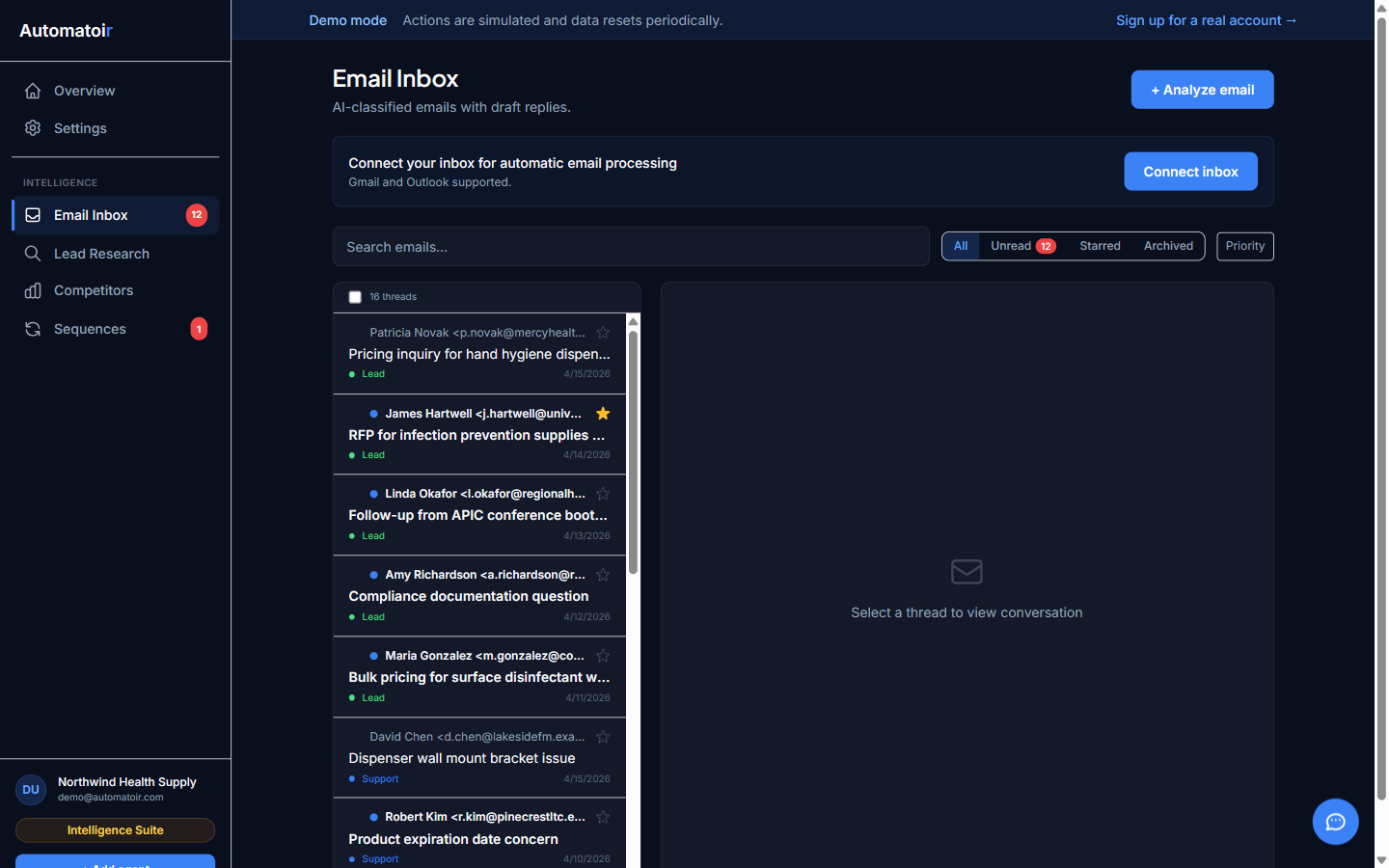
The Compose feature lets you write and send new outbound emails directly from your Automatoir dashboard. You don't need to switch to Gmail — compose, preview, and send all in one place.
What You'll Learn
- How to compose and send a new outbound email
- How to use CC and BCC fields
- How to send to a prospect already in your database
- How to use knowledge base context in your drafts
Composing an Email
Click the Compose button in the inbox toolbar to open the compose window. Fill in the following fields:
- To — the recipient's email address. Start typing to search your prospect database or enter any email address manually.
- Subject — the email subject line.
- Body — write your message in the rich text editor. You can format text, add links, and insert line breaks.
When you're satisfied with your message, click Send. The email is delivered through your connected Gmail account via Nylas, so it appears in your Gmail Sent folder as well.
CC and BCC
Click CC/BCC in the compose header to reveal the carbon copy fields:
- CC — recipients who receive a visible copy of the email. All recipients can see who is CC'd.
- BCC — recipients who receive a hidden copy. Other recipients cannot see BCC'd addresses.
Both fields support multiple addresses. Separate them with commas or press Enter after each address.
Sending to a Prospect
If the recipient is already in your prospect database, Automatoir recognizes them automatically when you type their name or email in the To field. Selecting a known prospect gives you two advantages:
- Context in drafts— when you ask Automatoir to help draft the email, it includes the prospect's company, role, qualification status, and any prior conversation history.
- Activity tracking— the sent email is logged on the prospect's timeline in Lead Research, so your team has a complete record of outreach.
Using Knowledge Base Context
When composing an email, you can ask Automatoir to generate a draft or suggest improvements. Click the AI Draft button in the compose toolbar and Automatoir will write a message that references your knowledge base— product descriptions, FAQs, pricing details, and any other documents you've uploaded.
This is especially useful for:
- Responding to technical questions with accurate product details
- Writing introductory emails that describe your offering clearly
- Following up on demos with relevant feature highlights
The AI draft is always editable. Review it, make adjustments, and send when you're ready. Nothing is sent without your explicit approval.
Related Guides
- Auto-Response Rules — automate replies instead of composing manually
- Adding Prospects — add contacts to your database for recipient lookup
- Knowledge Base — upload documents that power AI draft suggestions