Knowledge Base
The knowledge base is how you teach Automatoir about your product, pricing, and company voice. When the AI drafts an email reply or generates a sequence step, it pulls from the documents you upload here — so the output sounds like you, not a generic chatbot.
What You'll Learn
- What the knowledge base is and how it works
- Supported file types
- How documents are processed behind the scenes
- How to upload documents step by step
- Best practices for choosing what to upload
What Is the Knowledge Base?
The knowledge base is a collection of your own documents — product sheets, pricing guides, objection-handling playbooks, case studies, and more. Automatoir uses a technique called retrieval-augmented generation (RAG) to find the most relevant sections of your documents and include them as context when the AI writes an email draft or sequence step. The result is content that reflects your real product details, pricing, and tone of voice.
Supported File Types
- PDF — Product brochures, white papers, pricing sheets
- DOCX — Internal playbooks, objection-handling guides, email templates
- URL scrape — Paste a webpage URL and Automatoir extracts the text content automatically
How It Works Behind the Scenes
When you upload a document, Automatoir splits it into small, overlapping sections called chunks — typically a few paragraphs each. Each chunk is then converted into a numerical fingerprint called an embedding, which captures its meaning. When the AI needs to write an email, it compares the context of the conversation to all your chunks, finds the closest matches, and includes them in its prompt. You don't need to organize or tag anything — the system handles relevance automatically.
How to Upload
1. Open Settings
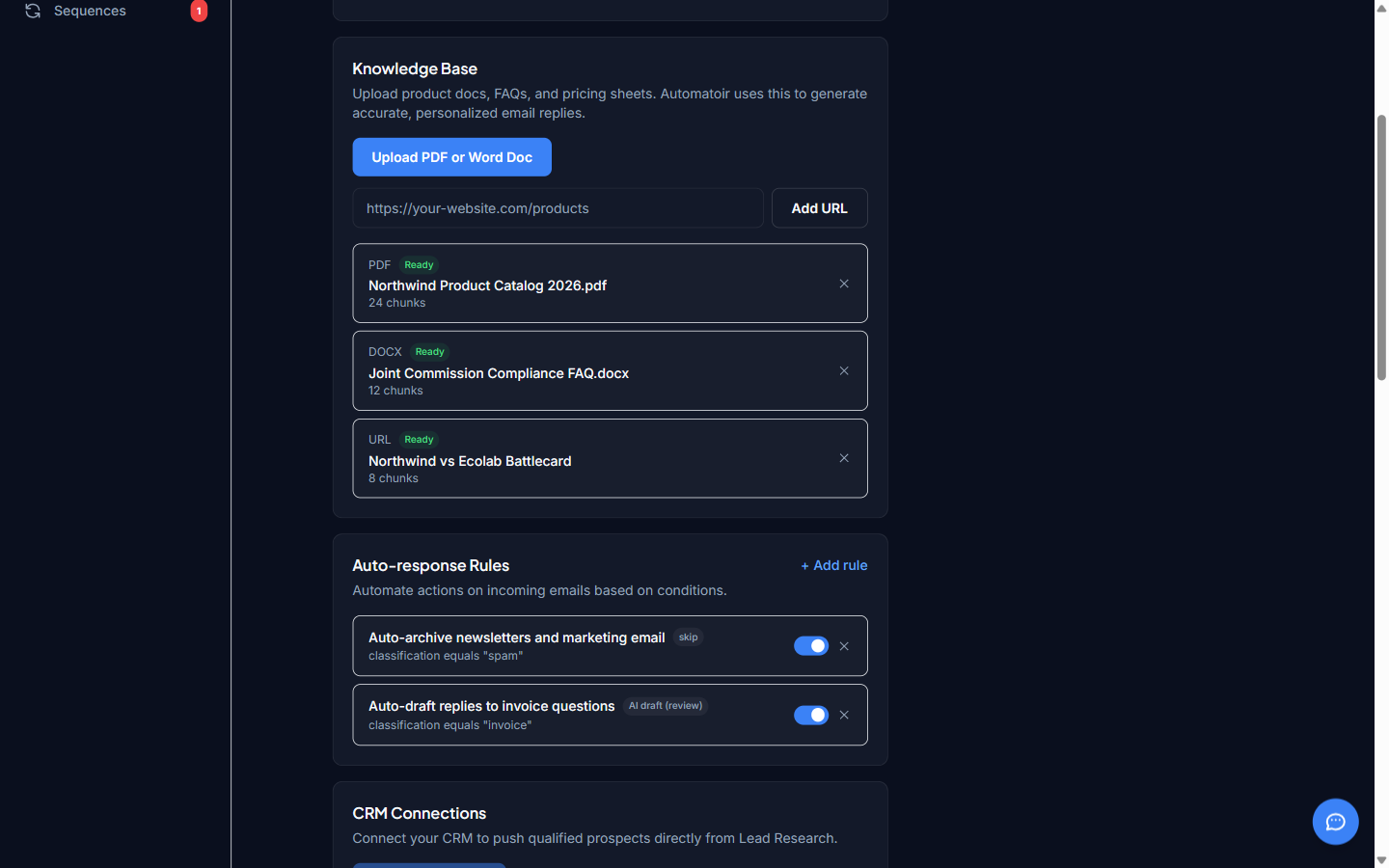
From the dashboard sidebar, click Settings and scroll to the Knowledge Base section.
2. Choose Your Upload Method
Click Upload Document to select a PDF or DOCX file from your computer, or click Add URL to paste a webpage address that Automatoir will scrape.
3. Wait for Processing
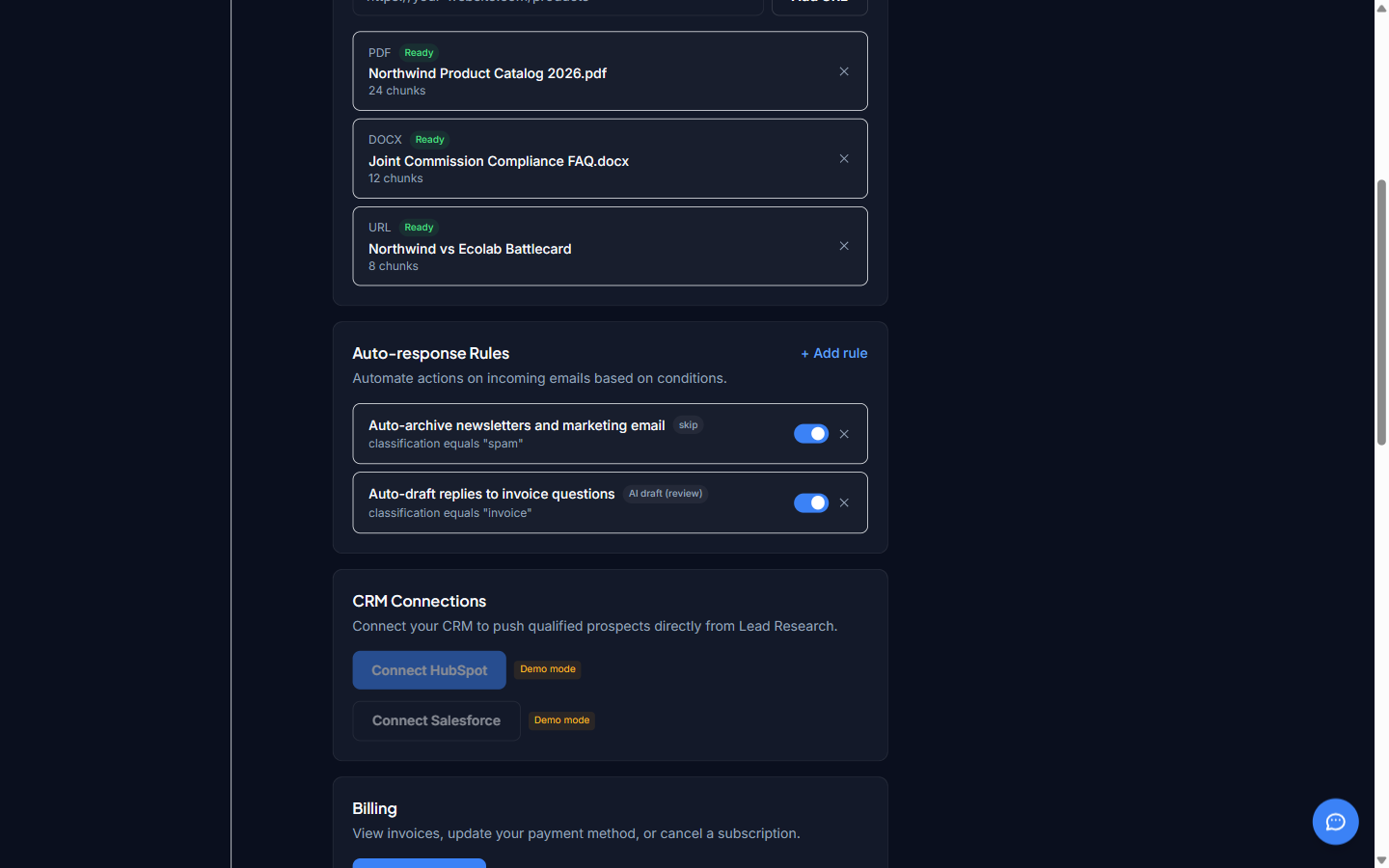
After uploading, Automatoir processes the document — splitting it into chunks and generating embeddings. This usually takes a few seconds for a typical product sheet. A progress indicator shows the status.
4. Confirm the Document Appears
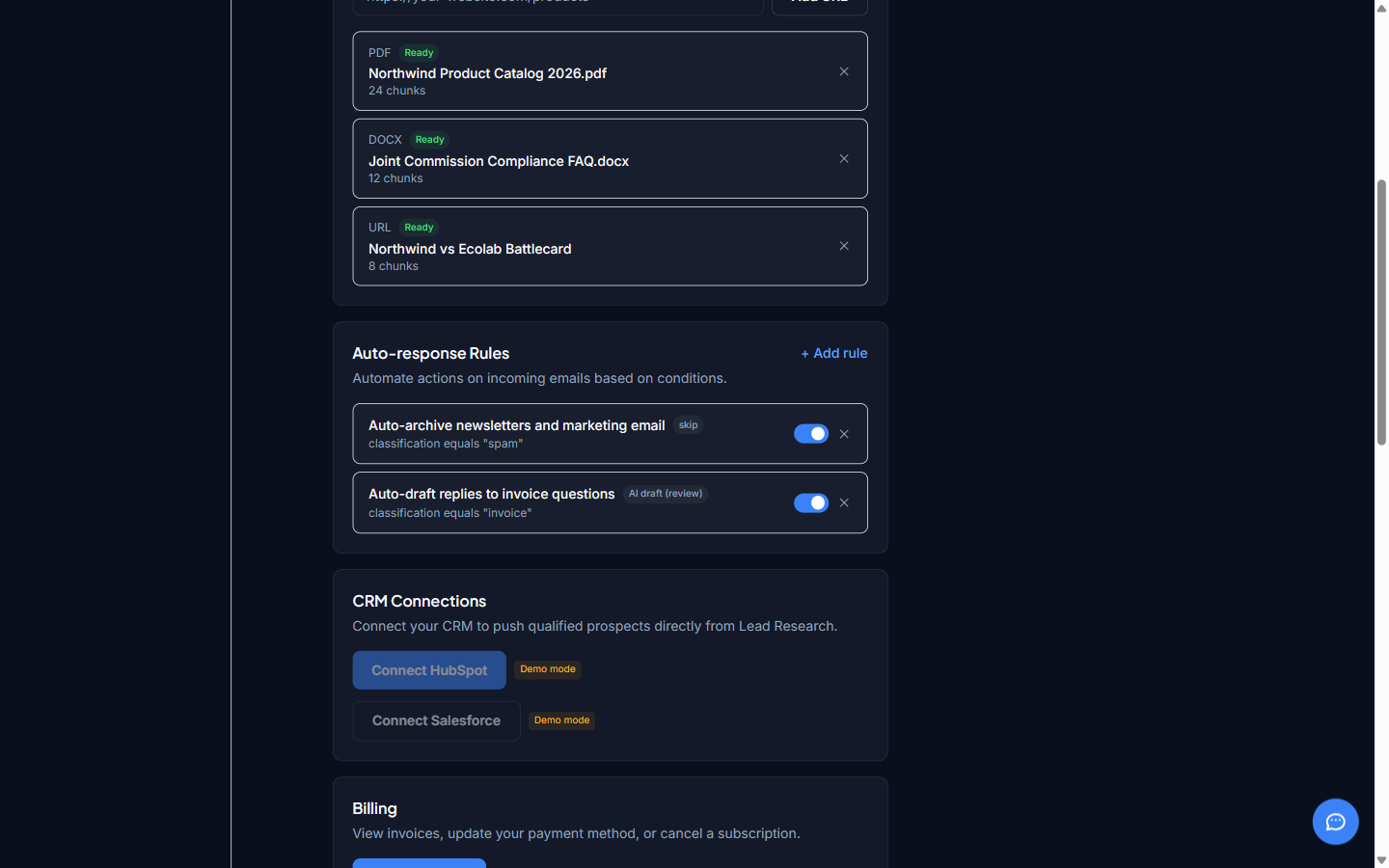
Once processing completes, the document appears in your knowledge base list with its name, type, and the number of chunks extracted. You can delete a document at any time if it's outdated.
Best Practices
The quality of your AI-generated content depends directly on what you upload. Here are the most impactful document types:
- Product sheets — Features, specifications, and differentiators. These give the AI concrete details to reference in outreach.
- Pricing documentation— Tier names, price ranges, and packaging. Helps the AI tailor messaging to the prospect's likely budget.
- Objection-handling playbooks — Common pushbacks and recommended responses. The AI uses these to craft follow-up emails that address concerns head-on.
- Company voice guidelines— Tone, vocabulary, and phrases your team uses (or avoids). Upload a style guide if you have one, or a few examples of emails your team considers "on brand."
- Case studies and testimonials — Real customer stories the AI can reference to build credibility in outreach sequences.
Tip: Start with three to five of your best documents. You can always add more later, and the AI will immediately start using them.
Related Guides
- Define Your ICP — Make sure your ICP is configured so the AI knows who to target with your knowledge base content.
- Compose — See how the knowledge base improves AI-drafted email replies in the inbox.
- Creating a Sequence — Build multi-step outreach sequences that pull from your knowledge base automatically.