Auto-Response Rules
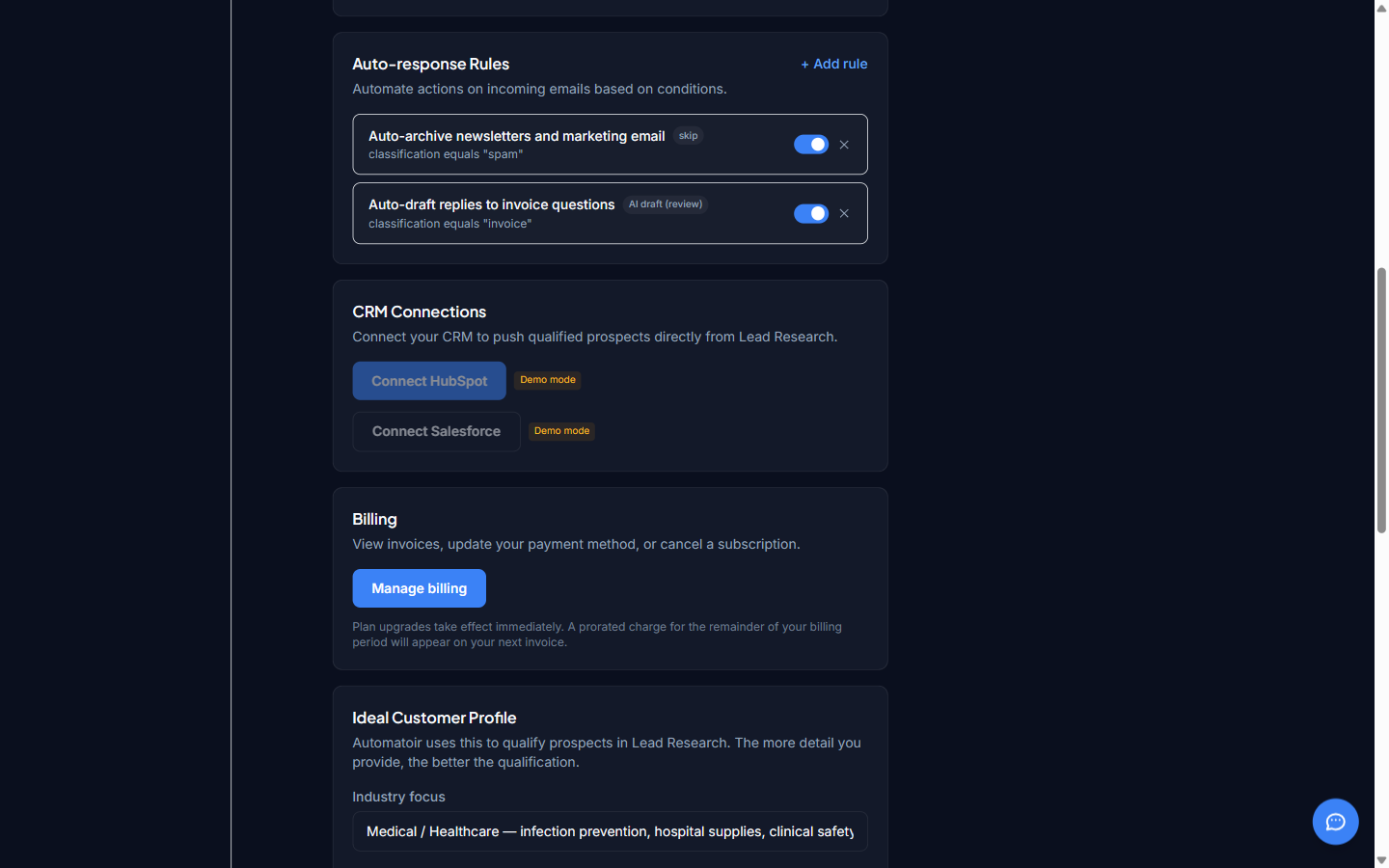
Auto-response rules let you automate how Automatoir handles incoming emails. When a message matches the conditions you define, the rule fires an action — generating an AI reply, inserting a canned response, or saving a draft for your review.
What You'll Learn
- What auto-response rules do and when they run
- How to build a rule with conditions and actions
- How condition logic works (AND/OR, keywords, classification)
- The three action types: AI reply, canned response, and draft
- How rule execution order is determined
- The difference between disabling and deleting a rule
What Rules Do
Every time an inbound email is classified, Automatoir checks it against your active rules in order. If a rule's conditions match the message, the configured action runs automatically. Rules are evaluated after classification completes, so you can use the assigned category as a condition.
Only one rule fires per email — the first matching rule wins. This makes execution order important (more on that below).
Building a Rule
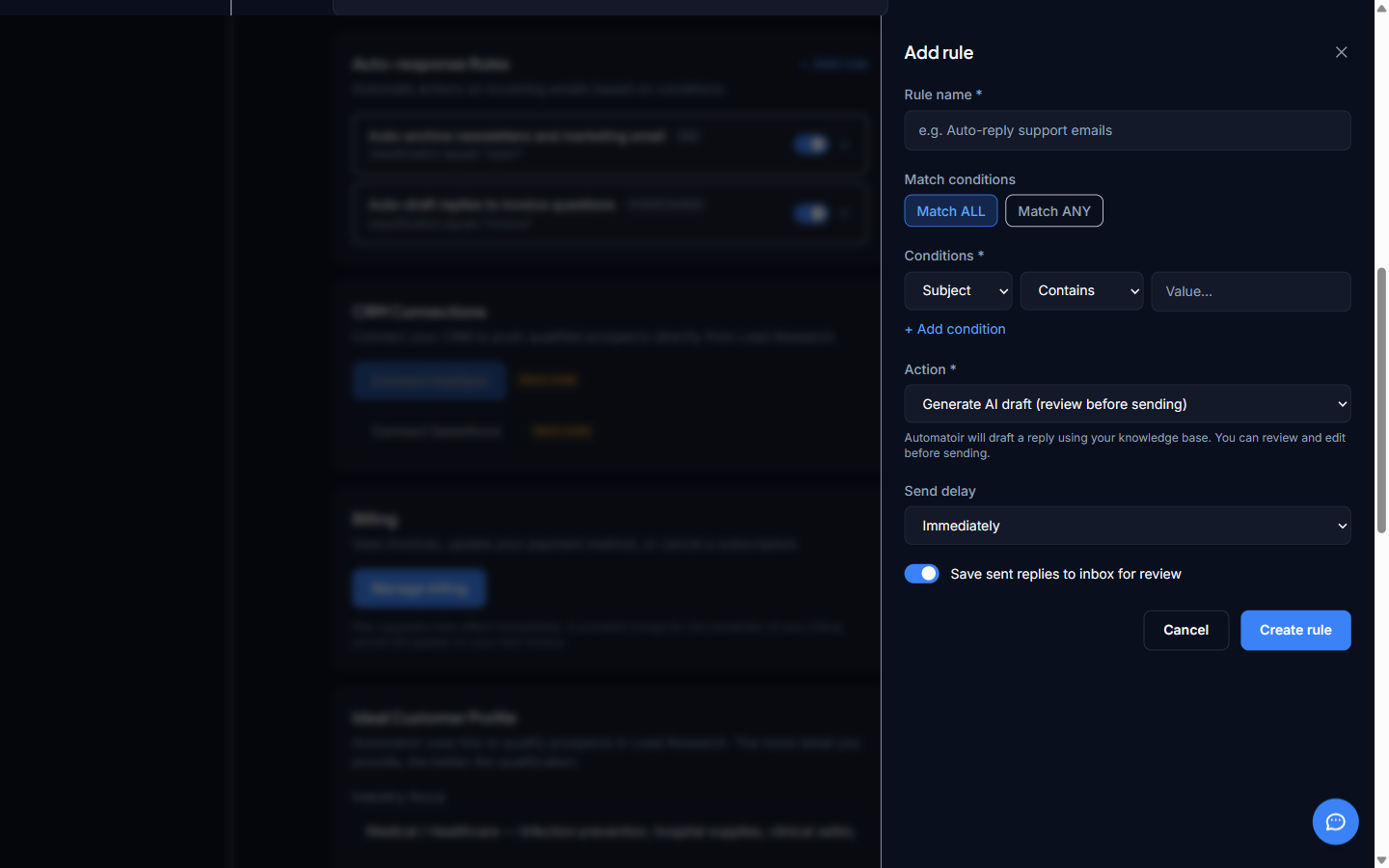
Open Settings → Auto-Response Rules and click Add Rule. Each rule has three parts:
1. Name
Give your rule a descriptive name so you can identify it later — for example, "Pricing Inquiry → AI Reply" or "Spam → Archive".
2. Conditions
Conditions determine which emails trigger the rule. You can combine multiple conditions using AND (all must match) or OR (any can match) logic.
Available condition types:
- Classification — match emails classified as Lead, Support, Spam, Invoice, or Other
- Keyword — match emails whose subject or body contains specific words or phrases
- Sender domain — match emails from a specific domain (e.g., "@competitor.com")
You can stack conditions for precision. For example: classification is Lead AND keyword contains "pricing" will only match lead-classified emails that mention pricing.
3. Action
Choose what happens when the conditions match:
- AI Reply — Automatoir generates a contextual reply using your knowledge base and sends it automatically. Best for common questions where speed matters.
- Canned Response — a fixed reply template you write in advance is sent as-is. Best for standard acknowledgments or out-of-office messages.
- Draft — Automatoir generates a reply but saves it as a draft instead of sending. You review and send manually. Best when you want AI assistance but need a human in the loop.
Example: Pricing Inquiry Rule
A common rule for sales teams:
- Name: Pricing Inquiry → AI Reply
- Conditions: Classification is LeadAND keyword contains "pricing" OR "cost" OR "how much"
- Action: AI Reply — Automatoir drafts a response that references your pricing page and invites the prospect to book a demo
This rule ensures every pricing inquiry from a qualified lead gets a fast, on-brand response without manual effort.
Rule Execution Order
Rules are evaluated from top to bottom in the order they appear on the rules list page. The first rule whose conditions match the incoming email is the one that fires — all remaining rules are skipped for that message.
You can reorder rules by dragging them in the rules list. Place your most specific rules at the top and broader catch-all rules at the bottom. For example:
- Pricing Inquiry → AI Reply (specific: lead + keyword)
- Lead → Draft (broader: any lead)
- Spam → Archive (catch-all for spam)
Disabling vs. Deleting
When you no longer want a rule to fire, you have two options:
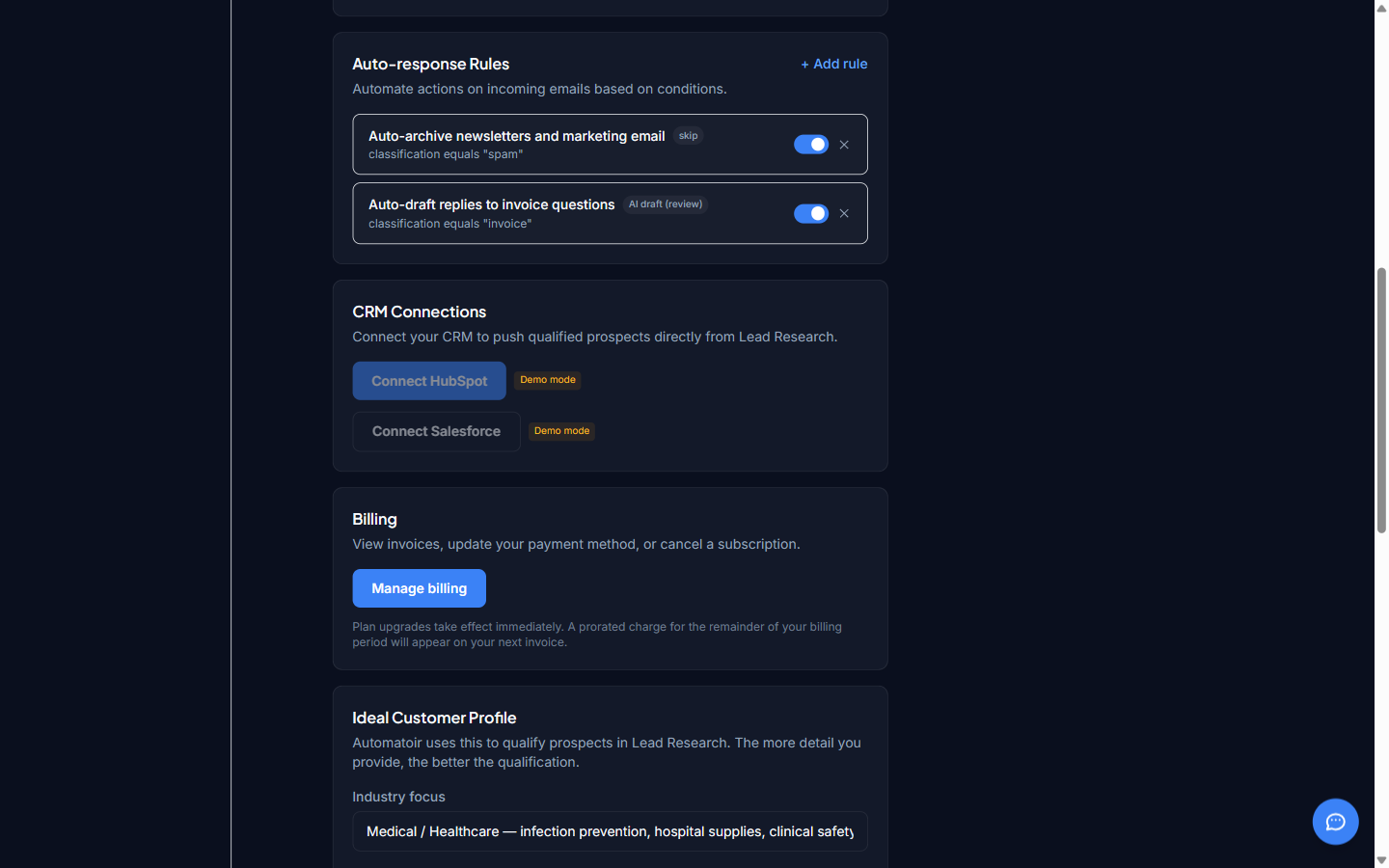
- Disable— the rule stays in your list but is skipped during evaluation. Toggle it back on at any time. Use this when you want to pause a rule temporarily — for example, while you're refining its conditions.
- Delete— the rule is permanently removed. Use this when you're sure you no longer need it. Deletion cannot be undone.
Related Guides
- Classification — understand the categories rules can match against
- Compose — manually compose emails outside of rules
- Knowledge Base — the context that powers AI-generated replies