Connect Gmail
Automatoir needs read access to your inbox so it can classify incoming email, generate AI drafts, and power your outreach sequences. This guide walks you through connecting a Gmail or Google Workspace account.
What You'll Learn
- How to connect your Gmail account via OAuth
- What scopes Automatoir requests and why
- What Automatoir does not do with your email
- How to reconnect or troubleshoot a broken connection
Step-by-Step
1. Open Settings
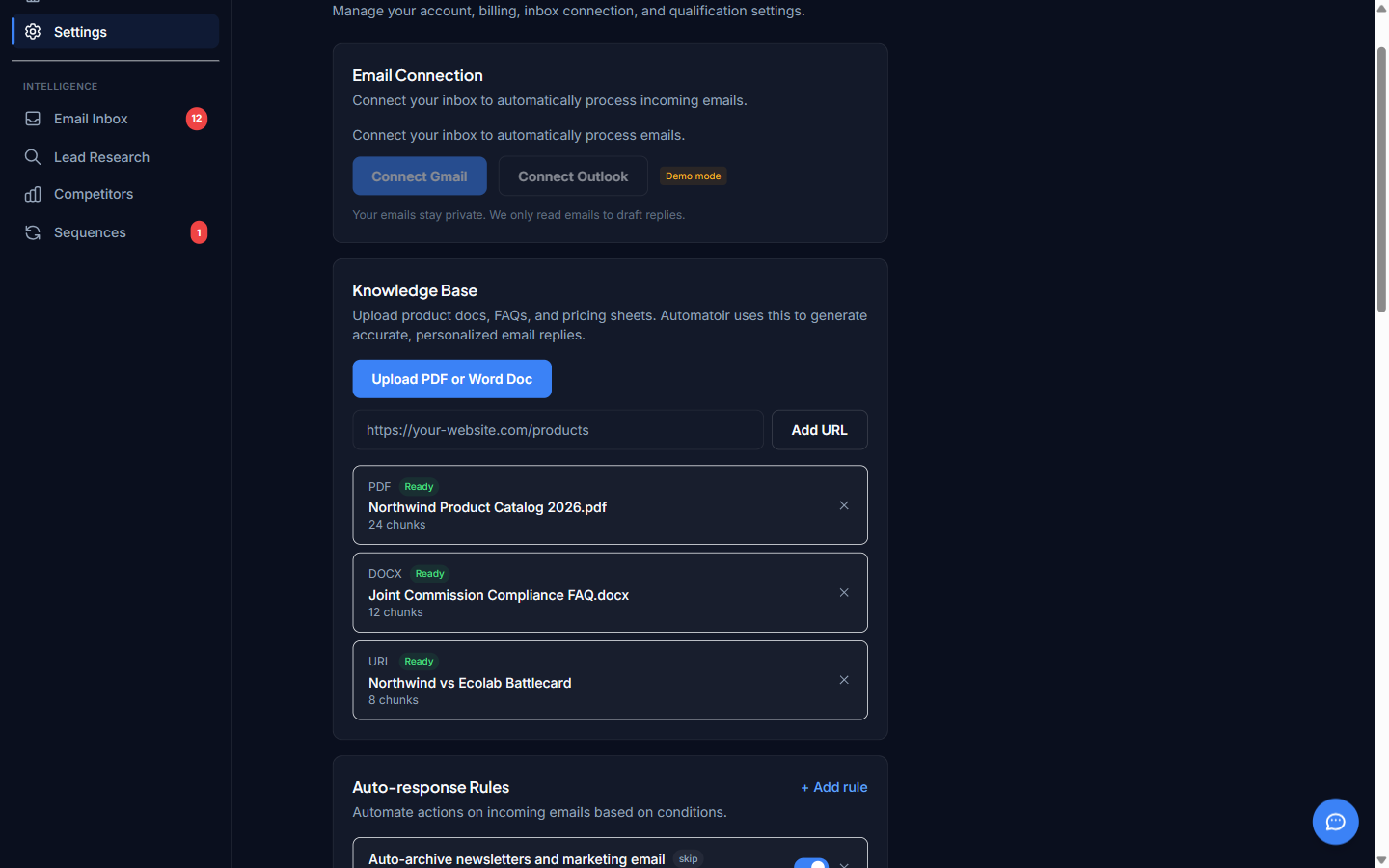
From the dashboard sidebar, click Settings. You'll land on the settings page with several configuration sections.
2. Find the Email Connection Section
Scroll to the Email Connectioncard. If no account is connected yet, you'll see a "Connect Gmail" button.
3. Click Connect Gmail
Clicking the button opens Google's standard OAuth consent screen. Sign in with the Google account you use for sales email, then review the permissions Automatoir is requesting.
Screenshot: Google OAuth consent screen showing requested permissions
docs-placeholders/connect-gmail-oauth.png
4. Approve the Permissions
Click Allow on the Google consent screen. Google redirects you back to Automatoir, and the Email Connection card updates to show your connected address.
5. Verify the Connection
After the redirect, the Email Connection section displays your connected email address and a green status indicator. You can also open the Email Inbox page — if recent messages appear, the connection is working.
Screenshot: Email Connection card showing a successfully connected Gmail account
docs-placeholders/connect-gmail-verified.png
What Automatoir Can See
Automatoir requests the following scopes through Nylas:
- Read email messages — subject, body, sender, recipients, and timestamps
- Read email threads — conversation grouping for context
- Send email on your behalf — only triggered when you explicitly approve a draft or sequence step
What Automatoir Does NOT Do
- Automatoir never sends an email without your approval. Every draft and sequence step requires explicit confirmation before it leaves your outbox.
- Automatoir does not train AI models on your email data. Your messages are processed in real time for classification and drafting, then discarded.
- Automatoir does not share your email content with other users or third parties.
Troubleshooting
Reconnecting a Disconnected Account
If your connection breaks — for example, after a password change or revoked Google permissions — return to Settings → Email Connection and click Reconnect. You'll go through the same OAuth flow described above.
Outlook Support
Outlook and Microsoft 365 support is coming soon. Automatoir's email integration is powered by Nylas, which supports both providers. Once Outlook OAuth is enabled, the connection flow will be identical to Gmail.
Related Guides
- Define Your ICP — Configure your ideal customer profile so AI classification works accurately.
- Knowledge Base — Upload documents that Automatoir uses to draft on-brand email replies.
- Email Classification — Learn how Automatoir categorizes incoming messages once your inbox is connected.