Adding Competitors
Competitive intelligence starts with telling Automatoir who you compete against. This guide walks you through adding a competitor, what data gets scraped, and how to choose between manual and scheduled monitoring.
What You'll Learn
- How to add a competitor by name and website URL
- What Automatoir scrapes from each competitor's site
- The difference between manual checks and scheduled monitoring
- How to edit or remove a competitor after it's been added
Add a Competitor
Open Competitive Intel from the sidebar and click the Add Competitorbutton. You'll need two pieces of information:
- Competitor name — The company or product name as you want it displayed in your dashboard.
- Website URL — The root domain or specific page Automatoir should crawl. Use the homepage for a broad scan or a pricing/features page for targeted analysis.
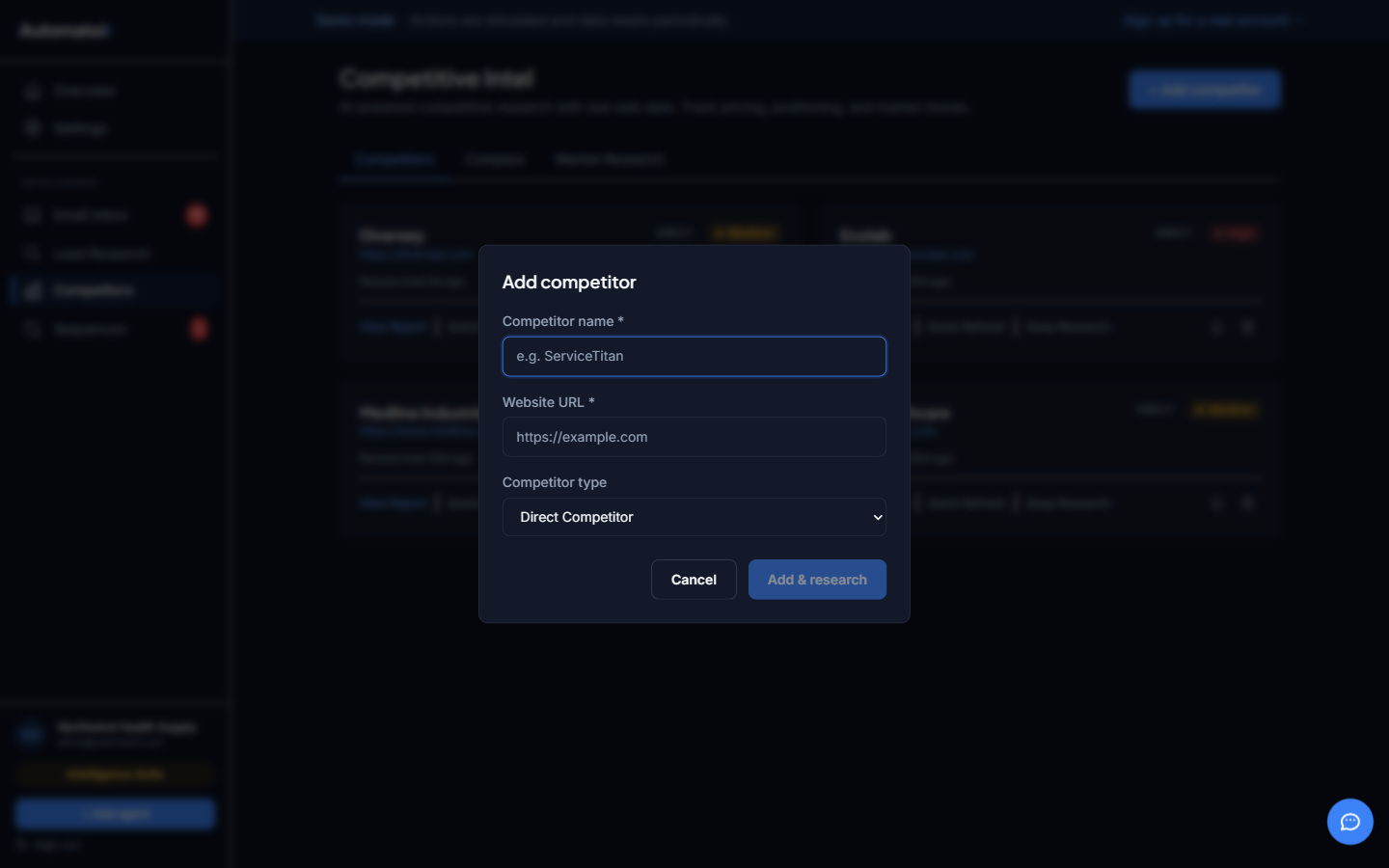
Click Save and Automatoir queues the first research check immediately. Results typically appear within a few minutes depending on the size of the target site.
What Automatoir Scrapes
When a check runs, Automatoir visits the competitor's URL and extracts key information including:
- Product positioning — taglines, hero copy, and value propositions
- Feature lists — capabilities highlighted on the site
- Pricing signals — published pricing tiers or "contact us" indicators
- Recent changes — new pages, updated messaging, or removed content compared to the last check
- Technology signals — frameworks, integrations, and third-party tools detected
All scraped data is fed into our AI for summarization. You never need to read raw HTML — Automatoir distills everything into an actionable summary.
Manual vs Scheduled Checks
You have two ways to monitor a competitor:
- Manual check — Click Run Check on any competitor card to trigger an on-demand scan. Useful when you know a competitor just shipped something new.
- Scheduled monitoring — Automatoir runs checks automatically on a recurring basis. The schedule is managed by your subscription tier. Scheduled checks keep your intel fresh without any manual effort.
Editing or Removing a Competitor
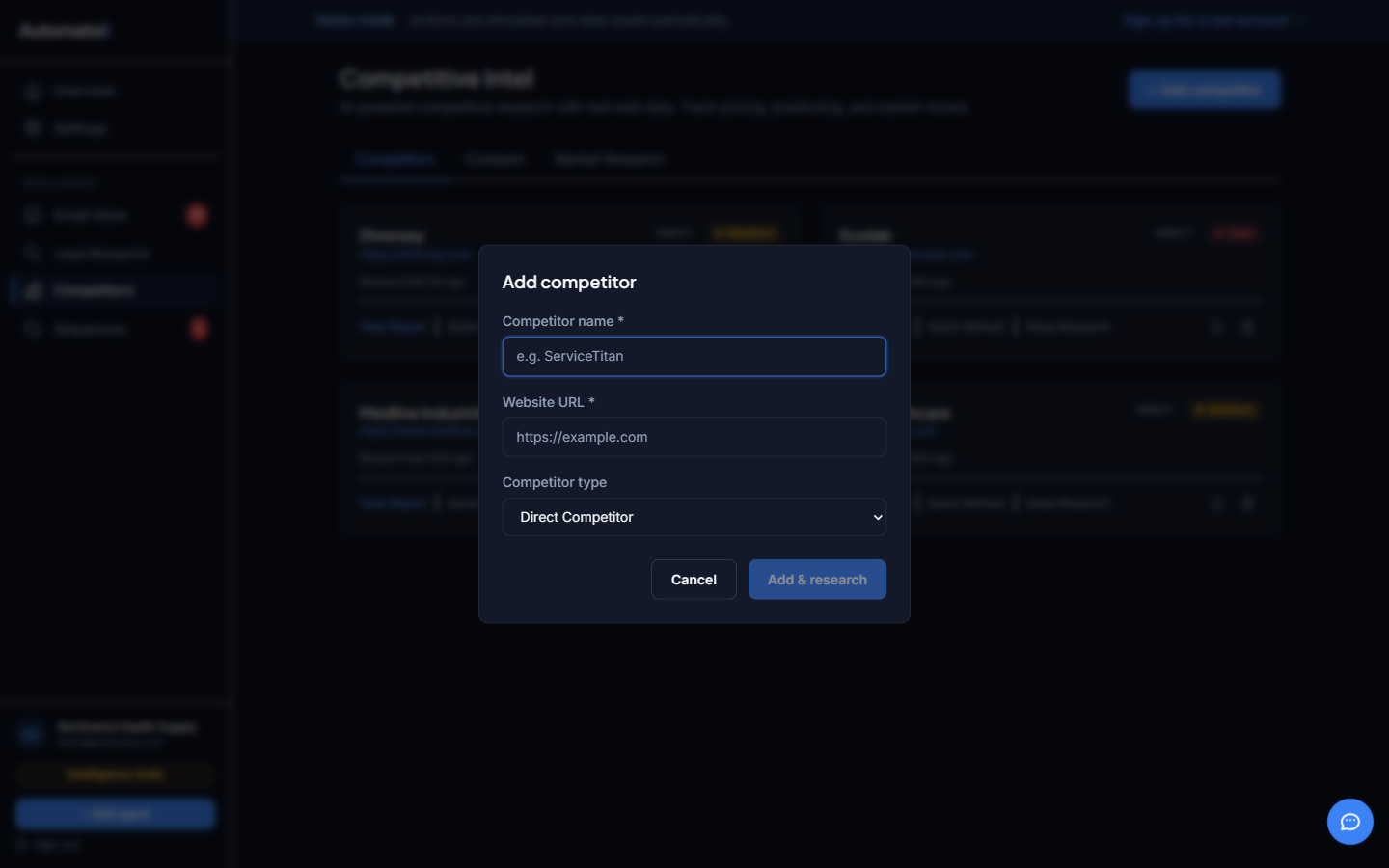
To update a competitor's name or URL, open the competitor detail view and click the edit icon. To remove a competitor entirely, use the delete option — this removes all historical checks and summaries for that competitor.
Related Guides
- AI Summaries — Understand how Automatoir generates threat analysis from scraped data.
- Competitive Intel Overview — High-level overview of the competitive intelligence module.